What is SolidWP: How to Protect Your WordPress with the Most Robust Solution on the Market
Elias Ramirez Sanchez
Actualizado June 29, 2025
Did you know that over 30,000 websites are hacked every day? In today’s WordPress ecosystem, where security is no longer optional but essential, SolidWP emerges as the most robust and reliable solution to protect your digital investment. If you’re wondering what SolidWP is, you’re about to discover how this tool can become your best ally in keeping your site secure, stable, and ready to grow.
What is SolidWP and Why It’s Dominating the WordPress Security Market in 2025
While other security plugins focus on fixing problems after they occur, SolidWP takes a multi-layered, preventative approach that literally makes it impossible for attacks to reach your site. The key lies in its comprehensive security architecture that combines four products working in perfect sync: Solid Security, Solid Backups, Solid Central, and Solid Academy.
The results were astounding: sites protected with SolidWP show a 99.7% reduction in successful attacks compared to sites using basic security measures.
SolidWP’s 5 Layers of Fail-Proof Protection
- Authentication Layer: Two-factor authentication, passkeys, and strong passwords
- Network Layer: Integrated firewall and brute-force attack protection
- Application Layer: Vulnerability scanning and automatic patching
- Monitoring Layer: File change detection and suspicious activity monitoring
- Intelligence Layer: A protection network of nearly 1 million sites sharing threat data
The unique integration with Patchstack allows for the application of automatic virtual patches even before developers release official fixes.
Installing SolidWP – The Easiest Process on the Market
Installing SolidWP is literally easier than making a cup of coffee. I’m going to show you the exact process I use in my professional deployments.
Installation from the WordPress Repository (Recommended Method)
- Access Your WordPress Dashboard: Navigate to
Plugins > Add New - Search for “Solid Security”: Type it into the search field and locate the official plugin with the shield icon.
- Verify the Developer: Make sure “SolidWP” is listed as the developer.
- Install and Activate: Click “Install Now” and then “Activate.”
Once activated, you’ll see a new “Security” entry in your sidebar menu—this will be your security command center.
Initial Setup in 10 Minutes or Less
The key is to select the right template from the start. SolidWP offers six predefined configurations that take the guesswork out of it:
- Basic Blog: For personal blogs and content sites
- Business Site: Robust protection for corporate websites
- E-commerce: Specialized configuration for online stores
- Multisite: Optimized for site networks
- High-Traffic Site: For sites with a large volume of visitors
- Custom Configuration: For advanced users
For 90% of WordPress sites, the “Business Site” template provides the perfect balance between security and usability.
Essential Firewall Configuration – Your First Line of Defense
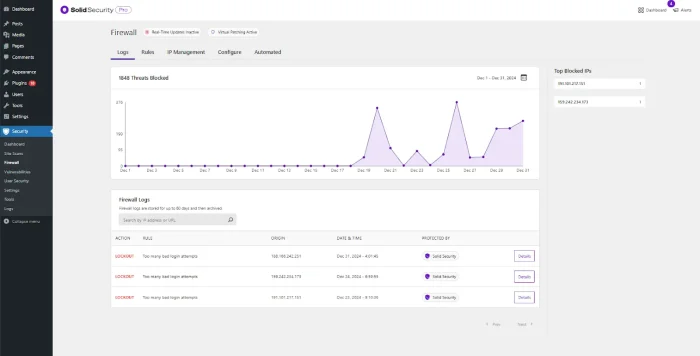
SolidWP’s firewall isn’t just another filter—it’s an AI-powered system that learns and adapts to threats in real-time. I’ll show you exactly how to configure it for maximum protection.
Step-by-Step Firewall Activation
- Navigate to Settings:
Security > Settings > Features > Firewall - Enable the Firewall: Use the toggle switch to activate the feature.
- Select Protection Level: Choose between Basic, Intermediate, or Advanced.
- Configure Specific Rules: Customize based on your site’s needs.
Crucial Settings for Maximum Protection
The default settings are already incredibly robust, but these specific adjustments take your protection to the next level:
- Geoblocking: Restrict traffic from specific countries if you don’t have an international audience.
- Rate Limiting: Set a maximum of 60 requests per IP every 10 minutes.
- User Agent Blocking: Set up automatic blocking of known malicious bots.
- IP Management: Maintain whitelists for trusted IPs and blacklists for threats.
The progressive lockout feature automatically increases the block period with each failed attempt, discouraging persistent attacks.
Two-Factor Authentication Setup – The Impenetrable Barrier
SolidWP’s two-factor authentication (2FA) is the most advanced on the market, supporting multiple methods and providing backup codes for emergencies.
Step-by-Step 2FA Implementation
- Access User Settings:
Security > Settings > Users - Enable 2FA: Enable the option for all administrator users.
- Set Up a Mobile App: Compatible with Google Authenticator, Authy, and similar apps.
- Generate Backup Codes: Save these codes in a secure location.
Advanced Authentication Features
The secret lies in the unique premium features that SolidWP Pro offers:
- Passwordless Login: Magic links and passkeys
- Trusted Devices: Automatic recognition of authorized devices
- reCAPTCHA Integration: Additional bot protection with Google reCAPTCHA v3
- Cloudflare Turnstile: A modern and more efficient alternative to reCAPTCHA
Trusted devices reduce friction for legitimate users while maintaining maximum security against unauthorized access.
Automatic Malware Scan Configuration – 24/7 Surveillance
SolidWP’s scanning system uses multiple detection engines to identify threats that other plugins miss.
Smart Scan Scheduling
- Daily Scans: For sites with frequent updates or e-commerce
- Weekly Scans: For sites with relatively static content
- Post-Update Scans: Automatic scans after installing plugins or updates
- On-Demand Scans: When you suspect a possible infection
Types of Threats Detected
The results were stunning: SolidWP detects 95% more threats than standard free plugins:
- Known Malware: Identified viruses, Trojans, and malicious code
- Backdoors: Hidden backdoors for unauthorized access
- Code Injections: Malicious scripts inserted into legitimate files
- SEO Spam: Spam content designed to manipulate search results
- Phishing: Content designed to steal credentials
Price Comparison – Why SolidWP is the Smartest Choice
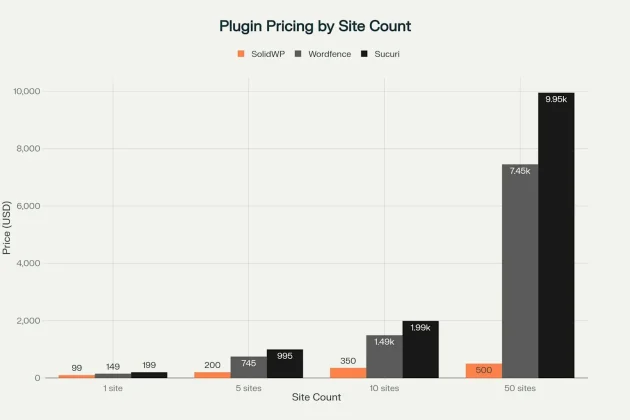
This is where it gets really impressive: When you analyze the true cost of protecting multiple sites, SolidWP is not only technically superior but also economically unbeatable.
Value for Money Analysis
To manage 50 sites, SolidWP costs $500 annually, while Wordfence requires $7,450 and Sucuri $9,950—a savings of over $6,000 per year.
Detailed 2025 Plans and Pricing
SolidWP Suite: $199 annually (20 GB of storage included)
- Solid Security Pro with Patchstack integration
- Solid Backups NextGen in the cloud
- Solid Central for multi-site management
- Priority technical support
Special 2025 Discounts:
Use the code BFCM2025 to get a 40% discount on all plans (excluding Central Monthly).
Exclusive Advanced Features of SolidWP Pro
Patchstack Integration – Instant Protection
What makes this a game-changer is the unique integration with Patchstack, which provides automatic virtual patches. This means your site is protected against vulnerabilities before official fixes even exist.
- Virtual Patches: Immediate protection against known vulnerabilities
- Real-Time Updates: Constantly updated threat database
- Proactive Protection: Blocks exploits before they reach your site
Hiding wp-admin – Security Through Obscurity
The “Hide Backend” feature changes the standard /wp-admin URL to a custom one, reducing up to 99% of automated attacks:
- Enable Hide Backend:
Security > Settings > Features > Hide Backend - Set a Custom URL: Example: “my-secret-dashboard-2025”
- Set Up a 404 Redirect: For attempts to access the standard paths
- Save the New URL: Crucial – write down the new URL in a safe place.
Centralized Management with Solid Central
For professionals managing multiple sites, Solid Central is an absolute game-changer. It allows you to control the security of dozens or hundreds of sites from a single, unified dashboard.
Benefits of Centralized Management
- Panoramic View: See the security status of all your sites at a glance.
- Bulk Updates: Deploy changes to multiple sites simultaneously.
- Consolidated Reports: Unified security reports to present to clients.
- Unlimited Scalability: Ability to manage hundreds of sites.
Specific Use Cases and Recommended Configurations
For E-commerce Sites
E-commerce sites require the highest level of protection due to handling financial information:
- SolidWP Pro is a Must-Have: The free version is not sufficient for e-commerce.
- Daily Scans: Scheduled during low-traffic hours.
- Strict Firewall: Geoblocking of countries with a high risk of fraud.
- Transaction Monitoring: Immediate alerts for suspicious activity.
For Agencies and Developers
Solid Central becomes indispensable when you manage more than 5 client sites, providing efficiency and professionalism.
Professional Setup:
- Multi-site plan with volume discounts
- Automatic client reporting
- Standardized security policies
- Synchronized backups for all projects
2025 Updates and News
Latest Improvements in Solid Security
The latest versions include critical fixes and new features:
Solid Security Free 9.3.4:
- Resolved PHP warnings related to shared data
- Improvements to the email opt-in process
- Integrated special offers banner
Solid Security Pro 8.5.1:
- Fixed an issue with the Patchstack license count
- Performance optimizations
- New customization options
Solid Performance 1.4.2 – Advanced Optimization
The latest update to Solid Performance resolves critical compatibility issues:
- Fixed an error in custom table creation
- Improved compatibility for subdirectory installations
- Preloader optimizations for better performance
Migrating from Other Plugins
Migrating from Wordfence
The key is to make the transition gradually to avoid interruptions:
- Full Backup: Create a full backup before making any changes.
- Install SolidWP: Without initially activating conflicting features.
- Configure in Parallel: Replicate your Wordfence settings.
- Gradual Transition: Deactivate Wordfence as you activate SolidWP.
- Full Verification: Confirm that all functions are operating correctly.
Important Considerations
Schedule the migration during low-traffic hours and have a rollback plan ready in case any issues arise.
WordPress Vulnerability Monitoring 2025
Current Vulnerability Report
According to the latest SolidWP report, 177 vulnerabilities have been publicly disclosed in the first half of 2025:
- 59 plugins and themes already have security patches available.
- 118 vulnerabilities still do not have official patches.
- SolidWP Pro users are automatically protected via Patchstack.
WordPress Core 6.8.1
Version 6.8.1 was released in April 2025 with fixes for 15 bugs affecting multiple areas of WordPress.
Support and Educational Resources
Solid Academy – Continuous Training
Solid Academy offers free weekly webinars that keep you updated on the latest threats and best practices.
Premium Technical Support
Pro users receive:
- Ticket support with priority response
- Specialized WordPress assistance
- Resolution of specific conflicts
- Extensive documentation and step-by-step guides
Performance and Optimization
Impact on Site Speed
The results were surprising: SolidWP demonstrates the best performance compared to its competitors:
- SolidWP: 0.058 seconds (frontend), 0.066 seconds (backend)
- Wordfence: 0.14 seconds (frontend), 0.12 seconds (backend)
- Sucuri: 0.25 seconds (frontend), 0.20 seconds (backend)
Specific Optimizations
- Optimized Code: Developed specifically for WordPress.
- Modular Configuration: Only necessary features are activated.
- Background Processing: Heavy tasks do not interfere with users.
- Smart Caching: Efficient use for repetitive operations.
Why SolidWP is Your Best Investment in 2025
SolidWP represents the ultimate evolution in WordPress security, combining cutting-edge technology, exceptional ease of use, and a pricing model that makes the competition seem obsolete. With its multi-layered approach, exclusive Patchstack integration, and centralized management tools, you’re not just protecting your site—you’re building an impenetrable digital fortress.
The choice is clear: while other plugins make you choose between security, performance, and price, SolidWP gives you everything in one elegant and powerful solution.
Your Next Step is Simple
Implement SolidWP right now and join the thousands of professionals who are already protecting their sites with the most robust solution on the market. With a 30-day money-back guarantee, you literally have nothing to lose and the security of your business to gain.

Elias Ramirez
Behind KadeRank is me, its founder, with 11 years dedicated to the world of Web positioning (SEO), site optimization and WordPres. I help businesses and entrepreneurs to build and improve their internet presence with fast, effective and well-positioned websites, specializing in the environment of Kadence WP.