
7 Steps to Create WordPress Headers with Kadence that Really Make An Impact (and Convert)
Let’s be honest: most WordPress headers are… boring. Generic. Forgettable. Or worse, you need to be a coding expert or install a dozen bloated plugins just to try and make them look halfway decent.
But here’s the good news: there’s a MUCH smarter way to do it. The Kadence Header Builder is your secret weapon for designing headers that not only look incredible but also work improving user experience (UX), reinforcing your brand, and yes, even helping you land more conversions.
I’m going to show you EXACTLY how to use the Kadence Header Builder, step-by-step, to create a professional, attractive, and optimized header. Forget the frustration and get ready to take full control.
Understanding the Power of the Kadence Header Builder (And Why You MUST Use It)
Before we dive into the “how,” it’s crucial to understand the “why.” What exactly is the Kadence Header Builder, and why should you care?
The Kadence Header Builder is a revolutionary visual tool, integrated directly into the Kadence Theme’s WordPress Customizer. It allows you to design and build your website’s header using an intuitive drag-and-drop interface.
Think about it: granular control over every aspect of your header, without touching a line of code. This, my friends, is a game-changer.
The VITAL Importance of a Good Header: Your header is often the first thing your visitors see. It’s your digital business card. A well-designed header is fundamental for:
- Navigation and UX: Guiding users intuitively. A clear menu is pure gold.
- Brand Identity: It’s home to your header logo and brand colors. Make them remember you!
- Conversions: A well-placed header CTA button can skyrocket your leads or sales.
- Professionalism and Credibility: A polished design conveys trust. Nobody trusts a site that looks like it was made in the 90s.
Now, why Kadence and not other options?
KEY Advantages of the Kadence Header Builder:
- UNMATCHED Visual Flexibility: The drag-and-drop system, combined with configurable rows and columns, gives you pinpoint control.
- Real-Time Customization: See changes INSTANTLY. No more saving and reloading a thousand times.
- OPTIMIZED Performance: Kadence is known for its speed. Its Header Builder is no exception. Your header won’t slow down your site!
- SEAMLESS Integration: Works beautifully with Kadence Blocks and Kadence Pro.
- (Almost Total) Code Independence: Create complex designs without being a programmer. Though, you can add custom CSS if needed.
Many themes limit you to a few predefined designs or force you to use code. Kadence gives you freedom AND performance. You don’t have to sacrifice one for the other.
Kadence vs. Traditional
| Feature | Kadence Header Builder | Traditional Options (Classic Themes/Other Builders) | Key Benefit for You |
|---|---|---|---|
| Interface | Visual Drag & Drop | Limited by theme, often requires code/plugins | Ease of use, ultra-fast design. |
| Structure | Multiple Configurable Rows and Columns | Fixed or limited structure | Total layout control. |
| Elements | Wide range of dedicated and powerful elements | Basic, often generic elements | Specific and customizable functionality. |
| Performance | Optimized and lightweight | Can be heavy, especially with additional plugins | Better loading speed, better SEO. |
| Responsiveness | Dedicated controls for desktop, tablet, and mobile | Often requires additional CSS for fine-tuning | Native and consistent responsive design. |
| Transparency/Stickiness | Built-in and easy-to-use options | Requires custom CSS or specific plugins | Advanced features without complications. |
By the end of this guide, you’ll be able to:
- Master the Header Builder interface like a pro.
- Design complex and visually stunning headers.
- Integrate and customize essential elements: logo, menus, CTAs.
- Implement advanced features like transparent and sticky headers.
- Ensure your header looks perfect on ANY device.
- And much more!
Accessing the Heart of the Header Builder
Okay, let’s get to work! Before you unleash your creativity, make sure you’ve got the basics covered. It’s easier than you think.
Prerequisites: The Kadence Theme Active
This is obvious, but fundamental: you need to have the Kadence theme installed and active on your WordPress site. If you don’t have it yet, you can download it for FREE from the WordPress.org repository (Appearance > Themes > Add New and search for “Kadence”).
Always keep your WordPress, Kadence theme, and PHP updated. This not only gives you access to the latest features but is also crucial for security and performance.
Navigating to the WordPress Customizer (Your Command Center)
The WordPress Customizer is where the magic happens. You can access it in two ways:
- From the Backend: In your WordPress dashboard, go to
Appearance > Customize. - From the Frontend: If you’re viewing your site and are logged in, look for “Customize” in the top admin bar.
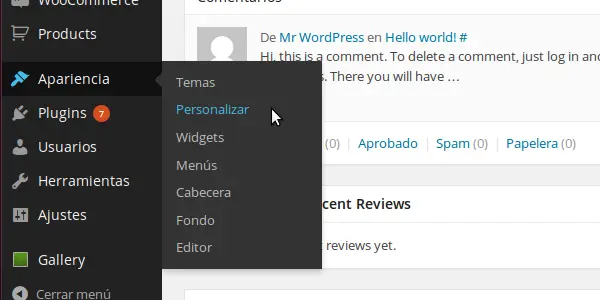
The beauty of the Customizer is that you see changes in real time. Goodbye guesswork!
Locating the “Header” Section in Kadence
Once in the Customizer, in the left-hand sidebar menu, look for and click on the “Header” option. Bingo! You’ve reached the Header Builder’s doorstep.
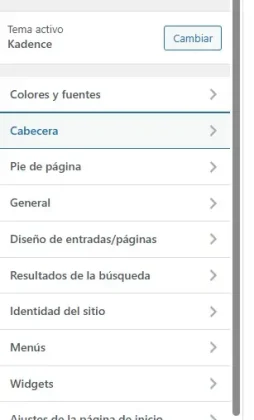
Upon entering, you’ll see the visual interface with rows (Top, Main, Bottom) and available elements. This direct integration into the Customizer is one reason Kadence is so intuitive.
Mastering the Kadence Header Builder Interface
Now you’re in. Let’s take a look at how this powerful tool works. Understanding its structure is key to designing web headers efficiently.
Overview of the Drag & Drop Builder (Pure Visual Magic)
The star of the show is the drag-and-drop functionality. At the bottom (or side) of the Customizer, you’ll see the header rows and a list of Available Header Items.
Want to add a logo? Simply click the “Logo” item, drag it, and drop it where you want within a row. It’s that easy. Every change is reflected instantly in the preview.
If you have Kadence Pro or Kadence Blocks Pro, you’ll see even more available items. More power to you!
This way of working not only simplifies the process but also encourages experimentation. Try different configurations in seconds. Don’t like it? Change it. Zero friction!
The Header Rows: Top, Main, and Bottom (Your Canvases)
Kadence organizes the header into up to three horizontal rows:
- Top Row: Ideal for secondary information: contact details, social icons, a utility menu (
My Account,Cart). - Main Row: The star. This is usually where the header logo and the main Kadence navigation menu go.
- Bottom Row: Extra space for a second menu, a tagline, widgets, etc.
Each row has its own design settings (height, background color, borders). This segmentation is fundamental for an organized and hierarchical design.
Available Columns and Their Configuration (Organize Your Elements)
Within each row, you typically have three placement areas: Left, Center, and Right. This allows you to align elements easily.
For example:
- Logo on the left, menu on the right.
- Centered logo, menu below or split.
- CTA button on the right.
The desktop organization influences how it will adapt on mobile. A very busy desktop design will need a smart mobile strategy, but we’ll get to that!
Available Items to Add to Your Header (Your Building Blocks)
Kadence offers you an arsenal of ready-to-use items:
- Logo: Your brand!
- Primary/Secondary Navigation: Your WordPress menus.
- Button: Perfect for a header CTA button.
- Social Icons: Connect with your networks.
- HTML: For custom code (use with caution!). Useful for shortcodes or small text snippets.
- Search: Help your users find content.
- Cart (WooCommerce): If you have an online store.
With Kadence Pro, the list expands with more buttons, HTML elements, widget areas, and more. More tools, more possibilities!
Common Header Builder Elements
| Element | Brief Description | Common Use Cases | Relevant NLP Keyword |
|---|---|---|---|
| Logo | Displays the site logo. | Brand identity, link to homepage. | Header logo |
| Navigation (Primary/Sec.) | Displays a WordPress menu. | Main navigation, important links. | Kadence navigation menu |
| Button | Creates a button with a link. | Calls to Action (CTAs). | Header CTA button |
| Social Icons | Displays icons linked to social profiles. | Connect on social media. | Header social icons |
| HTML | Allows inserting custom HTML code. | Ads, shortcodes, unique content. | HTML in header |
| Search | Adds a search icon or field. | Improve findability. | (Web search) |
Configuration Tabs: General and Design (Total Control)
When you select a row (click its gear icon ⚙️) or an element, the Customizer panel displays its options, usually in two tabs:
- General Tab: Controls content and functionality.
- For a
Button: text and URL. - For
Navigation: which WordPress menu to display. - For the
Logo: upload image, alt text. - For a
Row: minimum height, column structure.
- For a
- Design Tab: Controls visual appearance.
- Colors (background, text, border).
- Web typography for headers (font, size, weight).
- Spacing (padding, margin).
- Borders and shadows.
This separation (content vs. appearance) makes the process much more organized and less overwhelming.
First, define the structure and content of all your elements using the “General” tab. Once the functional base is ready, dive into the “Design” tab to polish the aesthetics. This workflow will save you time and headaches.
Configuring the ESSENTIAL Elements of Your Header
You know the interface. Now, let’s populate your header with the elements that will give it life and purpose. We’ll focus on the must-haves.
Adding and Customizing Your Logo (The Face of Your Brand)
Your header logo is VITAL. Drag the “Logo” element to your preferred row (usually the Main Row, left or center section).
Select the Logo element. In the “General” tab, upload your image. Recommendation: USE PNG for transparent backgrounds or SVG for perfect sharpness and scalability.
Kadence gives you amazing flexibility, allowing different logos for: BULLETED LISTS
- Transparent Header: You might need a white logo on a dark background.
- Sticky Header: A smaller or simplified logo might work better.
- Mobile: A compact logo for small screens.
Size and Retina Logo Options
A pixelated logo is a definite NO.
- Size Control: In the “Design” tab (or sometimes “General”), adjust the logo’s width/height to look proportionate.
- Retina Logo (High Definition): For high-density screens, upload a logo at twice the dimensions it will be displayed. If it’s shown at 150px wide, upload a 300px wide image and then constrain it to 150px with the controls. Sharpness guaranteed!
Site Title and Tagline Configuration (If Applicable)
If you don’t use a graphic logo, or as a supplement, you can display your site’s title and tagline. BULLETED LISTS
- Visibility: Control if they are shown in the header (options within the Logo element or as separate elements).
- Global Settings: Defined in
Customize > Site Identity. - Typography and Style: Customize their appearance in the “Design” tab so they integrate harmoniously.
Configuring the Main Navigation Menu
A well-configured Kadence navigation menu is pure gold for UX. Drag the “Primary Navigation” element to your main row.
Selecting the Menu to Display
Select the Navigation element. In “General,” choose the menu you created in Appearance > Menus.
If you don’t have any menus created, do it first! Go to Appearance > Menus in your WordPress dashboard. This is the first step to customize WordPress menu.
Menu Design Options (Spacing, Colors, Typography)
This is where your menu visually comes to life. In the Navigation element’s “Design” tab:
- Spacing: Adjust padding between items so they can “breathe.”
- Colors: Define colors for states:
Normal/InitialHover(when mousing over)Active(current page) Make sure they match your header color palette!
- Typography: Font, size, weight, text transformation. Key for your web typography for headers!
- Navigation Styles: Kadence might offer predefined styles (underline on hover, etc.).
Detailed customization here is crucial for brand consistency. Kadence makes it easy.
Submenu and Dropdown Configuration
If your menu has sub-items (dropdowns), Kadence lets you customize their appearance: BULLETED LISTS
- Dropdown Container Styles: Background color, width, borders, shadows.
- Submenu Link Styles: Colors and typography, which can differ from the main menu.
- Appearance Animations: Subtle effects like “Fade.”
- Dropdown Indicators: Arrows or other icons to signal submenus.
Adding a Call to Action (CTA) Button
A header CTA button is an incredibly powerful tool. “Request a Quote,” “Buy Now,” whatever you need! Drag the “Button” element to a prominent location (usually Main Row, right).
Button Text and Link
In the Button’s “General” tab: BULLETED LISTS
- Button Text: Clear, concise, action-oriented. Example: “Discover Our Plans.”
- Link (URL): Where the button will lead.
- Open in New Tab: Useful for external links.
Button Style and Visual Customization
An effective CTA MUST stand out. In the “Design” tab: BULLETED LISTS
- Colors: Background and text (normal and hover). High contrast is essential!
- Typography: Legible and consistent with your brand.
- Borders: Thickness, style, color.
- Border Radius: From rectangular to rounded corners or pill shape.
- Box Shadow: For a depth effect.
- Padding (Internal Fill): Controls the overall size of the button.
A button that isn’t seen, isn’t clicked. Use Kadence’s header design options to create an irresistible CTA.
Incorporating Social Media Icons
Make it easy for people to follow you. Drag the “Social” (or “Social Icons”) element to your header (Top or Bottom Row are usually good spots).
Adding Links to Your Profiles
Kadence centralizes this for greater consistency: BULLETED LISTS
- Global Settings: Go to
Customize > General > Social Links(or similar path). Enter your profile URLs. - The “Social” Element Uses Them: The element you add to the Header Builder will automatically pick up these links.
- Custom Icons (Advanced): For unlisted platforms, Kadence Pro might allow adding custom SVGs.
Icon Design and Display Options
In the Social element’s “Design” tab:
- Icon Style: Icon only, icon + name, name only.
- Colors: Official brand colors for each network? Or custom colors (normal and hover) that match your header color palette? You choose!
- Shape and Background (If applicable): Circle, square, etc.
- Size and Spacing: Visible but proportionate, and with space between them.
Customization ensures these icons complement your design, rather than clashing with it.
Advanced Customization for a Header that STANDS OUT
You’ve got the foundation. Now, let’s explore the options that will transform your functional header into one that’s truly striking and unique.
Configuring the Design of Header Rows
Each row (Top, Main, Bottom) is an individual canvas. Click the gear icon (⚙️) next to the row’s name to access its settings.
Height, Background Colors, Borders, and Shadows
In the row’s “Design” tab:
- Row Height (Min Height): Crucial for vertical spacing. Create visual hierarchy with different heights per row.
- Background Colors:
Solid ColorGradientBackground Image(with options for position, repeat, size).
- Borders: Top/bottom lines (color, thickness, style). A subtle bottom border can nicely separate the header from content.
- Box Shadow: For an elevation effect.
These details are what create a clear visual hierarchy and elegantly separate your header from the page content.
Device Visibility Options (Responsive to the Rescue!)
Key for an impeccable responsive design. In each row’s settings, you’ll find icons to control its visibility on desktop, tablet, and mobile.
Common strategy for a responsive header:
- Desktop: Show all necessary rows.
- Tablet: Perhaps hide the Top Row or simplify it.
- Mobile: Often, only the Main Row is shown (logo and hamburger menu), hiding others to optimize header for mobile.
Optimizing for mobile goes beyond just hiding rows. It involves rethinking what’s absolutely crucial on small screens. Kadence gives you the power to completely reconfigure elements for the mobile view, not just hide them. This is gold for mobile UX!
Row Visibility by Device (Conceptual Example)
| Header Row | Show on Desktop | Show on Tablet | Show on Mobile | Notes / Common Strategy |
|---|---|---|---|---|
| Top Row (Secondary info) | Yes | Optional (if space allows) | No (or key items in mobile menu) | Prioritize cleanliness on mobile. |
| Main Row (Logo, Nav) | Yes | Yes (Nav may change to trigger) | Yes (Nav changes to trigger/hamburger) | Always essential. Smaller logo, condensed nav. |
| Bottom Row (Others) | Yes | No (or highly simplified if vital) | No | Generally less critical for mobile. |
Working with the Transparent Header
A Kadence transparent header allows your page’s hero image or background video to show through it. Result: an ultra-modern and immersive look.
Access it in Customize > Header > Transparent Header.
When and How to Use a Transparent Header
When to Use: Perfect over impactful hero images, full-screen sliders, or video backgrounds. Activation: Enable “Enable Transparent Header.” Kadence allows you to apply it:
- Globally.
- Only on the Homepage (very popular!).
- On Specific Pages/Posts (may require Kadence Pro with “Conditional Headers”).
CONTRAST IS KING! Make sure your logo and menu are perfectly legible against any background that shows through.
Specific Configuration for the Transparent Header
Once active, the “Transparent Header” section gives you DEDICATED design options:
- Different Colors for Elements: This is fundamental! In the “Design” tab, set specific colors for menu text, links, logo, buttons, etc., that will be used ONLY in transparent mode. If your hero image is dark, use light colors for header elements.
- Different Logo for Transparency: Upload an alternative logo (e.g., white) if the main one doesn’t contrast well.
- Behavior on Scroll: It’s common for the transparent header to lose its transparency and acquire a solid background on scroll (combined with Kadence sticky header).
- Initial Overlay and Automatic Spacing: Kadence may offer “Auto Spacing Under” to automatically add padding below the transparent header, preventing content from being hidden. If not, adjust it manually.
The combination of an initial transparent header + an opaque sticky header on scroll is a super effective and popular technique.
Creating a Sticky Header
A Kadence sticky header stays “stuck” at the top as the user scrolls. Excellent for usability!
Find it in Customize > Header > Sticky Header.
Benefits of a Sticky Header
- Constant Navigation: Menu and logo always accessible.
- Quick Access to CTAs: Your
header CTA buttonalways visible can increase conversions. - Brand Reinforcement: Logo always present.
- Better Orientation: Less “getting lost” on long pages.
Activation and Customization Options (Shrink Effect, etc.)
Kadence gives you full control:
- Activation and Selection of Sticky Rows: Enable the feature and choose which rows will stick (e.g., only the Main Row).
- Shrink on Scroll (Shrink Effect): Highly recommended! The sticky header reduces its height when activated. Less intrusive.
- Different Logo for Sticky State: Ideal for a smaller logo or one with better contrast if the background changes.
- Background and Element Colors for Sticky State: Define specific styles for when the header is sticky.
- Appearance Animation/Effect: Subtle slide or fade. “Reveal on Scroll Up” is an advanced option that hides the header when scrolling down and shows it when scrolling up.
- Mobile Configuration: Crucial! Enable/disable or customize the sticky header for mobile.
Balance! A sticky header is great, but if it’s too tall, especially on mobile, it can be annoying. Use the “shrink” effect and consider disabling or adjusting it well to optimize header for mobile.
Typography and Color Settings (Global and Specific)
Visual consistency is a pillar. Kadence uses a hierarchical system:
- Global Colors: In
Customize > Colors & Fonts > Colors, you define your base palette. Header elements will inherit this by default. - Global Typography: In
Customize > Colors & Fonts > Typography, you define base fonts and sizes. - Specific Header Settings (Override): Here’s the power! In the “Design” tab of EACH row and EACH element in the Header Builder, you can override global styles. This gives you granular control for emphasis or legibility (e.g., in transparent headers).
Strategy: Use globals for consistency. Override specifically for emphasis (a striking CTA) or necessity (clear text on a dark background).
Understanding the style cascade is KEY. Globals -> General header settings (less common) -> Specific Row settings -> Specific Element settings (highest priority!). This helps you know where to make changes.
Adding Custom HTML Elements or Widgets
Sometimes, you need something more. Kadence has you covered:
- HTML Element: Drag it into your header. In its options, you can insert:
- HTML-formatted text (e.g., phone number with an icon).
- Shortcodes from other plugins (super powerful! Forms, language selectors, etc.).
- Scripts (USE WITH EXTREME CAUTION! They can affect performance or break things).
- Widget Area Element (Usually with Kadence Pro): Allows you to add standard WordPress widgets to your header. The possibilities skyrocket!
Use Cases: Dynamic content, plugin integration, small banners. Important! BULLETED LISTS
- Validate Your HTML Code.
- Mind Performance: Complex scripts and widgets can slow things down.
- Security: Beware of scripts from untrusted sources.
The HTML element is a powerful “escape hatch,” but use it wisely. Kadence’s native elements are optimized.
Optimizing Your Header for Mobile and Tablets (CRUCIAL!)
If your header doesn’t work on mobile, you’re losing visitors and money. Period. Optimizing header for mobile isn’t optional, it’s an absolute necessity.
The WordPress Customizer has preview icons (monitor, tablet, phone) at the bottom. USE THEM CONSTANTLY!
Mobile Header Preview and Adjustments
Kadence allows you to have a COMPLETELY DIFFERENT header design for tablets and mobile. Within the Header Builder, look for tabs or a selector to switch between editing “Desktop,” “Tablet,” and “Mobile.”
This means:
- Different Elements: On desktop, a horizontal menu. On mobile, a WordPress hamburger menu icon (“Trigger”).
- Adapted Logo: Smaller or simplified on mobile.
- Simplification: Elements like extensive search bars can be moved to the mobile menu panel.
Hamburger Menu Configuration (Mobile Menu Trigger)
The “hamburger menu” is the mobile standard.
- Add “Trigger” or “Mobile Navigation” Element: In the Tablet/Mobile customization view, drag this element to a visible row.
- Trigger Icon Style: In its “Design” tab, customize:
Icon Type: Various styles or custom SVG.Icon Color: Make it contrast!Icon Size: Easy to tap.
- Off-Canvas Panel: Tapping the Trigger opens a panel (from the side or full screen) that displays the menu and, optionally, other elements.
- Off-Canvas Panel Customization:
Appearance DirectionPanel BackgroundText and Link ColorsAdditional Elements: You can drag “Social,” “HTML,” “Button,” “Search” INSIDE the off-canvas panel!
The off-canvas panel can be a “mini mobile header.” Add a small logo, search, or a secondary CTA here to keep the top bar clean yet functional. This is key to improving my website design on mobile!
Specific Elements for the Mobile Header (Mobile Logo, etc.)
Kadence allows you to specify a different Mobile Logo. Use it! A smaller or simplified logo is often necessary.
For CTAs, social icons, search on mobile: In the top bar or inside the off-canvas panel? Simplicity and focus on critical actions are your guide.
Hiding/Showing Elements Based on Device
We already saw row-level visibility. For individual elements, Kadence’s main strategy is to allow you to build desktop and mobile/tablet header layouts that are inherently different.
Instead of hiding/showing parts of ONE design, you create an optimized design for desktop and ANOTHER for mobile/tablet, each with the elements you need. This is much more effective.
Kadence’s ability to facilitate a complete restructuring for mobile, rather than just hiding parts, is what enables SUPERIOR mobile optimization and a truly usable mobile header design.
Practical Examples and PROFESSIONAL Tips
Let’s see how to apply all this with some examples and best practices that will help you create an attractive header that’s also functional.
Minimalist Header with Logo and Navigation
Ideal for blogs, content-focused corporate sites, portfolios. Simplicity and clarity.
- Structure: Only
Main Row.Header logoon the left,Kadence navigation menuon the right. - Design: Simple background (white or light). Adjusted height. Legible typography. Menu colors with good contrast.
- Mobile: Menu becomes “Trigger.” Logo may be reduced.
- Keywords: Professional header design, Keep it simple and clear.
Header with Prominent CTA and Informative Top Bar
Perfect for businesses, eCommerce, service sites. Focus on conversion and useful information.
- Structure:
Top Row: Contact (HTML) orheader social iconson the left. Secondary Navigation (Login, Support) on the right.Main Row:Header logoon the left.Kadence navigation menuin the center. Prominentheader CTA buttonon the right.
- Design: Top Row more subtle (different background, smaller text). Main Row taller. CTA button with bold colors and good size.
- Mobile: Top Row hidden. Main menu to “Trigger.” CTA might remain or move to the off-canvas panel.
- Keywords:
Header CTA button,Improve web header,Header rows.
Transparent Header Over a Hero Image
Modern, integrated look. Ideal for sites with strong visual impact, landing pages.
- Structure:
Main Rowconfigured as transparent.Header logo(contrasting version) on the left.Kadence navigation menu(adapted colors) on the right. Optional:Header CTA button(ghost style). - Design: Activate
Kadence transparent header. Configure specific colors for the transparent state (logo, menu, button) for HIGH contrast with the hero image. Upload an alternative logo if necessary. - Scroll Behavior: Configure to become opaque and sticky (
Kadence sticky header) on scroll, changing colors and logo if needed. - Mobile: Can work, but contrast is even more critical. Often, opaque is chosen for mobile.
- Keywords:
Kadence transparent header,Create transparent header,Striking header.
The effectiveness of a Kadence transparent header CRITICALLY depends on the hero image beneath it. If the image is too “busy” or has extreme color variations where the text goes, legibility suffers. Consider applying a subtle color overlay to the hero image to improve contrast.
Additional Tips and Best Practices (Pure Gold!)
- Maintain Simplicity and Clarity: Less is more. Avoid clutter. Clear visual hierarchy.
- Ensure Intuitive Navigation: Clear and concise menu labels. Logical structure. Limit submenu depth. Visual feedback (hover, active).
- Prioritize Load SPEED: Optimize images (logo). Limit heavy scripts in
HTML in header. Leverage Kadence’s optimization. - Consistency with Your Brand Identity: Colors and fonts aligned with your style guide. The design should communicate your brand’s tone.
Remember, a confusing header is a useless header.
A “bloated” header with too many heavy elements can negatively impact metrics like LCP and overall performance. Be selective. Always prefer Kadence’s native functionalities.
Troubleshooting Common Issues
Even with Kadence, sometimes little things pop up. If you ever think, “I can’t change the WordPress header the way I want,” this section is for you!
The Menu Isn’t Appearing Correctly (The Classic!)
- Potential Cause 1: Menu not assigned.
- Solution: Ensure you’ve created the menu in
Appearance > Menus. Then, in the Header Builder, select the Navigation element, “General” tab, and choose your menu under “Select Menu.”
- Solution: Ensure you’ve created the menu in
- Potential Cause 2: Device visibility issues.
- Solution: Check the row and element visibility settings for each view (desktop, tablet, mobile). For mobile/tablet, ensure you have a “Trigger” configured.
- Potential Cause 3: Customizer zoom or window size.
- Solution: Browser at 100% zoom and maximized window when editing for desktop. Use the Customizer’s preview controls.
Problems with Transparent or Sticky Header
- Potential Cause 1 (Transparent not working / illegible):
- Solution: In
Customize > Header > Transparent Header, enable the option. In its “Design” tab, configure SPECIFIC colors for elements in the transparent state for HIGH CONTRAST. Use a different logo if necessary.
- Solution: In
- Potential Cause 2 (Sticky not “sticking” / looks bad):
- Solution: In
Customize > Header > Sticky Header, enable and select the correct rows. In its “Design” tab, configure background, text colors, etc., for the sticky state. Don’t forget the “shrink” effect and the logo for the sticky state.
- Solution: In
- Potential Cause 3 (Visual conflict with content):
- Solution: For Transparent: Look for “Auto Spacing Under” or manually add padding-top to your first page section. For Sticky: Kadence usually handles it; if not, check custom CSS or conflicts.
Conflicts with Other Plugins (WordPress’s Nemesis!)
- Potential Cause: Caching plugins, JS/CSS optimization plugins, or plugins that modify the header.
- Solution 1 (Cache/Optimization):
- Clear ALL caches! (Plugin, server, browser).
- Temporarily disable CSS/JS minification/combination. If resolved, try excluding Kadence Theme and Kadence Blocks files from these processes. Be careful with “delay JS execution.”
- Solution 2 (Other Plugins):
- Use the “Health Check & Troubleshooting” plugin. In its “Troubleshooting Mode,” activate Kadence and then your other plugins one by one until you find the culprit.
- Solution 1 (Cache/Optimization):
The key to resolving conflicts is systematic diagnosis. Disable plugins/options one by one. Document your steps. Don’t change things randomly.
Header Builder Troubleshooting
| Common Issue | Main Potential Cause | Key Suggested Solution | Relevant Keywords |
|---|---|---|---|
| Menu not visible/incorrect | Not assigned / Hidden by responsive view / Customizer zoom | Verify menu assignment; check mobile/desktop visibility; adjust zoom. | Kadence navigation menu, Mobile header design |
| Transparent header elements illegible/not transparent | Colors not adjusted for transparency / Not enabled | Enable transparency; configure specific colors for high contrast in Transparent Header > Design. | Kadence transparent header, Header color palette |
| Sticky header not sticking/looks bad/covers content | Not enabled / Sticky styles not configured / Padding | Enable in Sticky Header; configure styles for sticky state; verify page padding. | Kadence sticky header, Configure sticky header |
| Broken styles after optimization plugin | Conflict with CSS/JS minification/combination, lazy load | Clear caches; disable optimization options; exclude Kadence files; review JS loading. | CSS for headers, Header settings |
| Customizer changes not reflecting | Cache issue (browser, plugin, server, CDN) | Clear ALL cache layers; test in incognito mode. | Can't change WordPress header |
Conclusion: Create Professional and Unique Headers with Kadence NOW!
You’ve made it! You’ve gone through this comprehensive guide and now have the knowledge and tools to stop having a “run-of-the-mill” header and start to design web headers that truly make a difference.
We’ve seen how the Kadence Header Builder gives you:
- Intuitive Power and Flexibility: With its
drag and drop headersystem andheader rows. - Capacity for Striking Design: With
Kadence transparent headerandKadence sticky header. - Comprehensive Mobile Optimization: To
optimize header for mobileeasily and effectively. - (Almost) No-Code Control: To
create custom WordPress headerwithout frustration.
There are no more excuses for a generic header. You have the power to improve my web design (well, YOUR web design!) spectacularly.
Now it’s your turn. I encourage you to dive into the Kadence customizer. Experiment. Test. Unleash your creativity. Use the examples in this guide as inspiration, but create something yours, something that represents your brand and speaks to your users.

Elias Ramirez
Behind KadeRank is me, its founder, with 11 years dedicated to the world of Web positioning (SEO), site optimization and WordPres. I help companies and entrepreneurs to build and improve their Internet presence with fast, effective and well-positioned websites, specializing in the Kadence WP environment.
