
Child Theme in WordPress with Kadence – Everything You Need to Know
I’m going to show you EXACTLY how to master child themes in WordPress using Kadence Theme. This comprehensive guide is designed for digital marketing professionals looking to customize their websites without compromising stability or losing modifications during updates.
Understanding the Essence of a Child Theme
What is a WordPress Child Theme?
A Child Theme is a WordPress template that automatically inherits all the functionality, features, and styles of another pre-existing theme, known as the parent theme. The key is that it functions as an independent extension that keeps the core functionality intact while allowing for specific modifications without altering the original code.
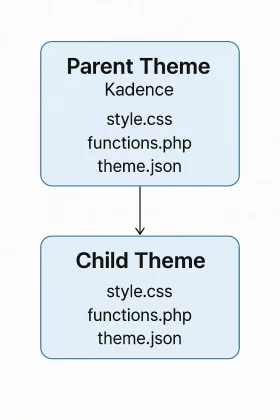
A child theme creates a layer of protection between your customizations and the main theme, ensuring that any modifications you make remain intact during parent theme updates.
How the Inheritance System Works
The inheritance system in WordPress operates using a smart file hierarchy. When WordPress needs to display a page, it first looks in the child theme. If it doesn’t find the necessary file, it automatically falls back to the parent theme. This architecture allows you to:
- Override specific files by copying them from the parent theme to the child theme
- Automatically inherit all files not present in the child theme
- Add new functionality through the functions.php file
- Customize styles using the custom style.css file
But here’s where it gets interesting: the child theme uses a style.css file that must contain specific information in the header indicating the parent theme’s name. This file is essential for establishing the connection between both themes.
Fundamental Differences: Parent Theme vs. Child Theme
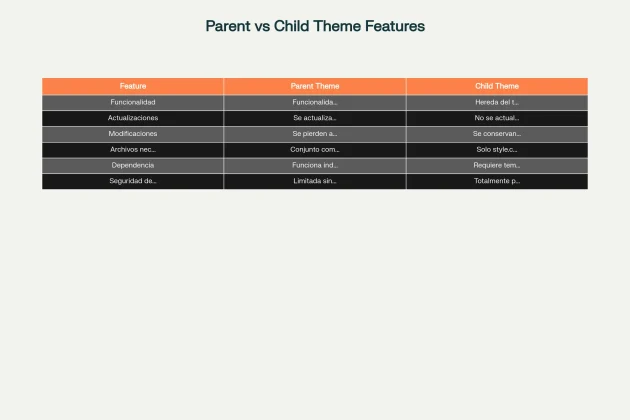
The most crucial difference is that the child theme does not update automatically, which preserves all your customizations, while the parent theme is updated regularly to maintain security and functionality.
When You Need a Child Theme with Kadence
The Unique Kadence Approach
Kadence Theme takes a different philosophy toward customization. Unlike other themes, Kadence prioritizes the WordPress Customizer over child themes for most users, based on:
- Intuitive visual customization via the Customizer
- Built-in options for most needs
- Native integration with Kadence Blocks
- Ease of use for non-technical users
Scenarios Where You DO Need a Child Theme
Modifying template files or advanced functions
You need a child theme when you plan to make modifications that go beyond the Customizer’s options:
- Overriding files like header.php, footer.php, or single.php
- Modifying specific theme functions
- Creating custom templates for specific content types
- Adding custom hooks or advanced filters
- Integrating with plugins that require file modifications
Advanced CSS and PHP customizations
Although Kadence offers extensive options through the Customizer, you need a child theme for:
- Complex CSS that can’t be managed in the Customizer
- Modifications to PHP files for specific functionality
- Integration with plugins that require changes to theme files
- Customizations that affect the theme’s core behavior
When You DON’T Need a Child Theme
Kadence was designed to minimize the need for child themes. You don’t need one when:
- You’re only making minor CSS changes manageable in the Customizer
- You’re only using native WordPress options
- You’re adding simple functions that can be handled with plugins like Code Snippets
- Your customization is based solely on Kadence Blocks
Creating Your Kadence Child Theme
Manual Step-by-Step Method
Creating a child theme manually for Kadence is surprisingly simple and only requires FTP access or a file manager.
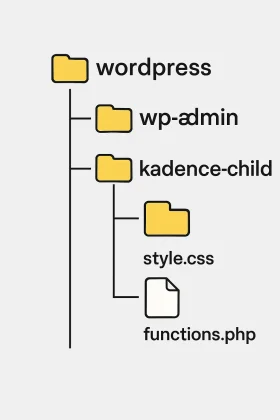
Step 1: Create the Child Theme Folder
- Navigate to
wp-content/themes/ - Create a new folder:
kadence-child
Step 2: Create the style.css File
css/*
Theme Name: Kadence Child
Description: Child theme for Kadence
Author: Your Name
Template: kadence
Version: 1.0
*/

/* Your custom styles here */
Step 3: Create the functions.php File
php<?php
/**
 * Kadence child functions.
 */

add_action('wp_enqueue_scripts', 'kadence_child_enqueue_styles', 11);

function kadence_child_enqueue_styles() {
wp_enqueue_style('kadence-child', get_stylesheet_directory_uri() . '/style.css', null, wp_get_theme()->get('Version'), false);
}
The
wp_enqueue_stylefunction with a priority of 11 is crucial to ensure the child theme’s styles load correctly after the parent theme’s.
Using the Official Kadence Child Theme
Kadence offers an official child theme that greatly simplifies the process:
- Visit the official Kadence Child Themes page
- Download the child theme’s ZIP file
- Install the child theme through the WordPress dashboard
- Activate the child theme from Appearance > Themes
The official Kadence child theme already includes the correct configuration for enqueuing stylesheets, saving you time and potential errors.
Advanced Setup and Best Practices
Customizer Settings
Customizer settings are stored in the database and are specific to each theme. To transfer settings:
- Use plugins like Customizer Export/Import
- Export the settings in a .dat file format
- Import the settings into the child theme
- Document all the changes you’ve made
Handling Kadence Hooks and Filters
Kadence provides specific hooks for advanced customization:
php// Customize the Kadence logo URL
function custom_kadence_logo_url() {
return 'https://your-site.com';
}
add_filter('kadence_logo_url', 'custom_kadence_logo_url');

// Modify the excerpt length
function custom_excerpt_length($length) {
return 25;
}
add_filter('excerpt_length', 'custom_excerpt_length', 999);
Common Errors and How to Avoid Them
The most frequent errors include:
- Incorrect filenames that cause loading failures
- Incorrect syntax in style.css or functions.php
- Not enqueuing stylesheets correctly
- Modifying parent theme files instead of the child theme’s
- Not testing changes in a staging environment
Modern Alternatives to a Child Theme
Custom Code Plugins
Plugins like Code Snippets offer a modern and practical alternative:
Advantages:
- Visual interface for managing code
- Easy activation/deactivation of functionalities
- Portability between themes without losing functionality
- Improved security with automatic validation
Kadence Blocks and Native Options
Kadence Blocks provides a powerful alternative for design customization without needing code:
- Advanced blocks for complex layouts
- Built-in responsive design
- Global styles that maintain consistency
- Library of customizable templates
When to Choose Each Option
The choice depends on your technical level and specific needs:
- Child Theme: For deep file and functionality modifications
- Code Snippets: For simple PHP functions and minor customizations
- Customizer: For visual and configuration changes
- Kadence Blocks: For advanced code-free design
Maintenance and Safe Updates
Back Up Before Modifying
Always take these steps before implementing a child theme:
- Create a full backup of the website
- Verify parent theme compatibility
- Plan the modifications you are going to make
- Document changes for future reference
- Test in a staging environment
Safely Updating the Parent Theme
The main advantage of a child theme is protection during updates:
- The parent theme is updated automatically
- Your customizations remain intact
- New functionalities are inherited automatically
- Security stays up-to-date
Although child themes protect your modifications, significant changes in the parent theme may still require adjustments in the child theme.
Implement This Now
You’ve just discovered the ultimate strategy for using child themes with Kadence. The next step is to implement this methodology in your next project.
The key is to understand that Kadence offers multiple paths for customization. Child themes remain a valuable tool for advanced customizations, but they are not necessary for every project.
The result will be impressive: you’ll have a custom website that preserves all your modifications during updates, backed by a solid and scalable architecture.

Elias Ramirez
Behind KadeRank is me, its founder, with 11 years dedicated to the world of Web positioning (SEO), site optimization and WordPres. I help companies and entrepreneurs to build and improve their Internet presence with fast, effective and well-positioned websites, specializing in the Kadence WP environment.
