
Migrate to Rocket.net : Complete Step by step Guide



Migrating to Rocket.net is a strategic decision that can significantly transform the performance and reliability of your WordPress website. With over 400,000 sites successfully migrated and an average tech support response time of 47 seconds, Rocket.net has established itself as a premium platform that fully justifies the migration effort for projects that prioritize speed, security, and operational simplicity.
This comprehensive guide will walk you through every stage of the migration process, from initial planning to post-migration optimization, ensuring a transfer with no data loss, intact SEO rankings, and minimal downtime.
Why Migrating to Rocket.net is a Winning Decision
The decision to migrate to a new hosting platform requires a careful evaluation of the return on investment (ROI) and the tangible benefits that justify the time and effort involved. Rocket.net offers a unique value proposition that goes beyond traditional hosting.
Rocket.net’s Competitive Advantages
Rocket.net isn’t just another hosting provider; it’s an all-in-one optimization platform designed specifically to maximize WordPress performance. Its distinct advantages include features that often require multiple services from other providers.
Premium features you get automatically:
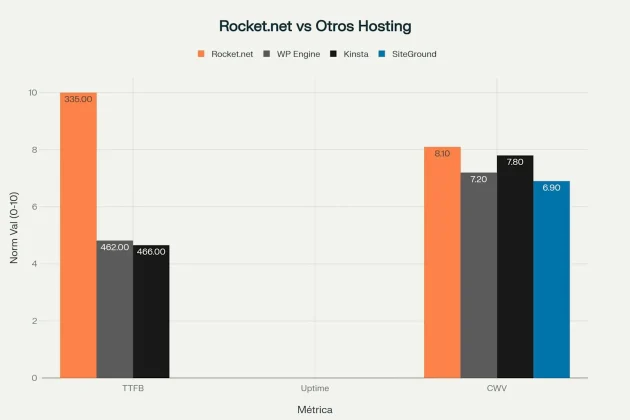
- Average TTFB of 335ms: Significantly outperforming competitors like WP Engine (462ms) and Kinsta (466ms)
- Cloudflare Enterprise CDN included: 275+ edge locations at no extra cost
- Enterprise NVMe storage: Read/write speeds 5-10x faster than traditional SSDs
- Unlimited PHP Workers: No artificial restrictions causing bottlenecks
- WP Rocket included for free: A premium caching plugin valued at $59/year
The bottom line is that Rocket.net includes features by default that other providers charge extra for:
| Feature | Rocket.net | Typical Competitors |
|---|---|---|
| WP Rocket Plugin | Included Free | $49-59/year extra |
| Redis Pro | Included Free | $100/month extra |
| Migrations | Unlimited Free | 1-3 included |
| SSL Certificates | Unlimited Automatic | Basic included |
| Specialized Support | 24/7 Exclusive WordPress | Generalist support |
Independently Measured Performance
2025 performance studies reveal substantial differences:
- Rocket.net: 335ms TTFB, 99.99% Uptime, 8.1/10 WPBench Score
- WP Engine: 462ms TTFB, variable uptime, limited features
- Kinsta: 466ms TTFB, good overall speed, higher cost
- SiteGround: 580ms TTFB, lower price, inferior performance
Unlike competitors who implement promotional pricing followed by significant renewal increases, Rocket.net maintains fixed pricing with no renewal hikes, providing long-term budget predictability.
Ideal Use Cases for Rocket.net
Migrating to Rocket.net is especially justified for specific user profiles who can maximize the value of the platform’s premium features.
Profiles that get the maximum ROI:
- E-commerce and high-traffic sites: WooCommerce stores with specific optimization for concurrent transactions
- Sites with 100K+ monthly visitors: The point where premium optimization generates measurable ROI
- Agencies and professional developers: A portfolio of multiple clients with centralized management
- Businesses that prioritize reliability: Critical SLAs with 99.99% uptime aligned with client commitments
Pre-Migration Preparations: The Foundation for Success
A successful migration requires meticulous preparation to minimize risks and ensure operational continuity. This prep phase is critical to prevent data loss, extended downtime, and post-migration issues.
Full Backup of Your Website
A full backup is the most important safety net during any migration. A proper backup should include all critical components of your WordPress site and be stored in multiple, secure locations.
Essential backup components:
- Complete WordPress files: The `wp-content` directory, including themes, plugins, and uploads
- MySQL database: A full export with both structure and data
- Configuration files: `wp-config.php`, `.htaccess`, `robots.txt`
- SSL certificates: If you use custom certificates
- Server configurations: Files specific to your current host
Recommended backup methods:
- UpdraftPlus: Automatic backups with storage on Google Drive, Dropbox
- Duplicator Pro: A complete backup and migration solution with packaged files
- All-in-One WP Migration: Intuitive interface that bypasses hosting limitations
For a manual backup via FTP, download all files from the `/public_html/` directory and export the database via phpMyAdmin in `.sql` format with gzip compression.
Inventory of Active Plugins and Themes
A detailed inventory of active plugins and themes is essential for verifying compatibility with Rocket.net and planning the post-migration configuration. Some plugins may become redundant due to Rocket.net’s built-in features.
Plugins you can potentially replace:
- Caching plugins: WP Rocket is included for free; disable your current version.
- CDN plugins: Cloudflare Enterprise is built-in; disable any external configuration.
- Security plugins: Imunify360 + Enterprise WAF are included; evaluate for redundancy.
- Backup plugins: Automatic backups are included; keep yours until you verify the new functionality.
- Optimization plugins: Automatic optimization is built-in; review the need for existing ones.
For each plugin, document its name, current version, purpose/functionality, specific settings, dependencies on other plugins, and criticality level (essential/useful/replaceable).
Verifying Compatibility with Rocket.net
A pre-migration compatibility check prevents post-migration issues and ensures all critical site functionalities will work correctly in the new Rocket.net environment.
Technical aspects to check:
- Software versions: Modern PHP (7.4, 8.0, 8.1, 8.2, 8.3), MySQL, and WordPress versions.
- WordPress functionalities: Multisite compatibility, WooCommerce optimization, no limitations on custom post types.
- Plugins with special considerations: Caching/optimization, external CDNs, specific functionalities.
Migration Timeline Planning
Strategic timing minimizes the impact on users and maximizes the chances of a successful migration. The optimal timing considers traffic patterns, team availability, and maintenance windows.
Recommended timeline:
- One week before: Finalize the full backup, complete the compatibility inventory, and announce maintenance.
- 24 hours before: Perform a final, up-to-date backup, verify access credentials, and prepare the support team.
- During the migration: Activate a maintenance page, execute the step-by-step process, and monitor progress.
- Immediately post-migration: Verify full functionality, update DNS, and monitor performance.
| Site Type | Typical Duration | Complexity Factors |
|---|---|---|
| Blog/Basic Site | 2-4 hours | Content size, number of images |
| Small E-commerce | 4-8 hours | Products, WooCommerce settings |
| Business Site | 6-12 hours | Integrations, custom content |
| Multisite/Complex | 12-24 hours | Multiple domains, advanced configurations |
Step-by-Step Migration Process
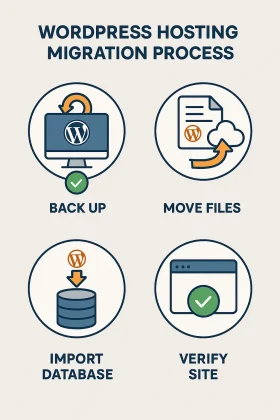
The migration process to Rocket.net can be handled in two main ways: free assisted migration (recommended for most users) or manual migration (for advanced users who require granular control over the process).
Registration and Initial Setup on Rocket.net
Rocket.net’s onboarding process is streamlined for simplicity without sacrificing customization options. The initial setup lays the groundwork for a successful migration.
Step 1: Create an account and select a plan
- Go to rocket.net and review the available plans.
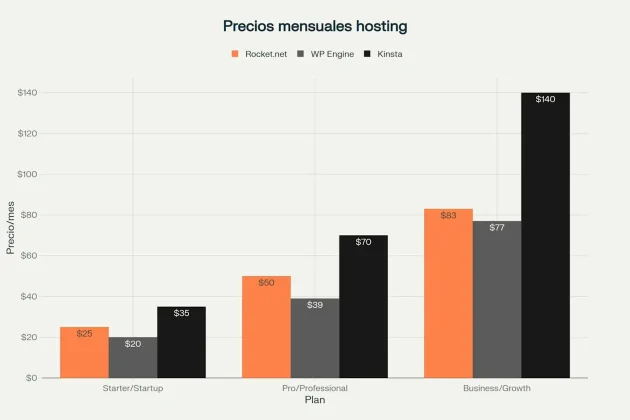
- Select the appropriate plan: Starter $25/mo, Pro $50/mo, Business $83/mo2
- Apply promo code: First month for $1 automatically applied14
- Complete the billing information with verifiable data.
- Confirm and process the initial payment.
Step 2: Initial account setup
- Email verification: Automatic confirmation via email.
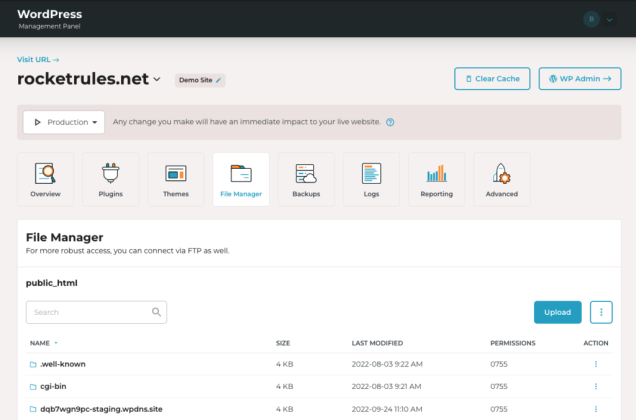
- Access the control panel: Proprietary dashboard optimized for WordPress5
- Set up 2FA: Two-factor authentication is recommended for security.
- Select server location: 7 server locations available globally.
Free Assisted Migration (Recommended Method)
Rocket.net offers unlimited free migrations performed by experts who have been managing WordPress since its launch in the 2000s. This service includes a preview on a temporary URL before any DNS changes are made.
Assisted migration process:
- Request migration: Contact support via live chat or create a ticket.
- Provide information: FTP/cPanel access for the current host, WordPress credentials.
- Processing time: 1-2 hours depending on the size of the site.
- Preview and verification: Rocket.net provides a temporary URL for testing.
- Final approval: The client approves before the final DNS change.
The Rocket.net team guarantees a 1:1 migration that mirrors the exact condition of your current host, with immediate improvements in performance and security without requiring additional configurations.

Manual Migration for Advanced Users
For users who prefer granular control over the process, a manual migration allows for complete customization and precise timing.
Step-by-step manual process:
- File transfer: Upload all WordPress files via FTP to the new server.
- Database migration: Export from the old host and import into Rocket.net.
- wp-config.php setup: Update the database credentials.
- Domain and DNS configuration: Point A records to Rocket.net’s servers.
- Verification and testing: Confirm functionality before finalizing the migration.
When exporting the database, use gzip compression for large files and verify the `utf8_general_ci` charset to avoid encoding issues.
Domain and DNS Configuration
DNS configuration is the final step that makes your migrated site visible to the public. This process requires careful coordination to minimize downtime.
DNS change process:
- Lower TTL 24-48 hours prior: From 86400 seconds to 300 seconds to speed up propagation.
- Verify functionality: Confirm the site works on Rocket.net using your hosts file.
- Change the A record: Point the main domain to Rocket.net’s IP address.
- Verify propagation: Use tools like whatsmydns.net to confirm the changes.
- Restore normal TTL: Revert to the original setting after a successful migration.
For technical verification, use: the `dig` command, `nslookup`, and GTmetrix for a post-migration speed test.
Post-Migration Configuration
After completing the basic migration, the post-migration setup optimizes the site to fully leverage Rocket.net’s premium features and ensure optimal operation in the new environment.
SSL and HTTPS Setup
Rocket.net provides automatic SSL certificates via Let’s Encrypt, but proper configuration requires specific steps to ensure a complete and secure implementation.
Automatic SSL activation:
- Automatic SSL: Rocket.net detects the domain and generates a certificate automatically.
- Activation time: 5-15 minutes after pointing the DNS correctly.
- Verification: The control panel shows an “SSL Active” status with a green indicator.
- Automatic renewal: Certificates are renewed automatically before they expire.
Forcing HTTPS via WordPress:
php// Configuration in wp-config.php
define('FORCE_SSL_ADMIN', true);

// WordPress URLs
WordPress Address (URL): https://yourdomain.com
Site Address (URL): https://yourdomain.com
Use the Really Simple SSL plugin to automate redirects and fix mixed content issues. Verify the implementation with an SSL Labs Test to get an A rating or higher.
Cache and Performance Optimization
Rocket.net includes an advanced caching system and the premium WP Rocket plugin for free, but optimal configuration requires specific adjustments to maximize performance.
Integrated caching system settings:
- Page caching: Activated automatically by Rocket.net.
- Object caching: Redis Pro included and pre-configured.
- OPcache: PHP opcode cache enabled by default.
- Browser caching: Appropriate headers configured automatically.
Included WP Rocket settings – recommended basic adjustments:
- ✅ Minify CSS files
- ✅ Combine CSS files (if it doesn’t cause design issues)
- ✅ Minify JavaScript files
- ⚠️ Combine JavaScript files (test carefully)
- ✅ Enable lazy loading for images
- ✅ Enable lazy loading for iframes and videos
CDN Configuration (Cloudflare Enterprise)
Rocket.net includes Cloudflare Enterprise which activates automatically, but it may require specific adjustments for sites with previous CDN setups.
Migrating from a previous CDN:
- Basic Cloudflare: Change DNS to “DNS only” (gray cloud).
- MaxCDN/KeyCDN: Deactivate the corresponding plugins.
- Custom CDN: Remove any specific configurations.
- Purge cache: Clear the old CDN’s cache before the change.
Optimizations included automatically:
- ✅ Brotli compression
- ✅ Auto minification (HTML, CSS, JS)
- ✅ Image optimization and WebP conversion
- ✅ Polish (image compression)
- ✅ Rocket Loader (JavaScript optimization)
- ✅ HTTP/2 and HTTP/3 support
Verify the CDN is active using your browser’s Inspector—the response headers should show “cf-ray” and GTmetrix should show an edge location in the waterfall chart.
Troubleshooting Common Issues
Even with the most meticulous planning, issues can arise during or after migration. Effectively resolving common problems ensures a stable and functional migration that fully leverages Rocket.net’s capabilities.
Database Connection Issues
Database connection issues are one of the most frequent errors during migrations and are usually related to incorrect credentials or outdated configurations.
Solutions for the “Error establishing a database connection” error:
- Check wp-config.php: Update `DB_NAME`, `DB_USER`, and `DB_PASSWORD` with the credentials from Rocket.net.
- Confirm DB_HOST: Change to ‘localhost’ or the specific IP provided by Rocket.net.
- Verify permissions: Ensure the user has ALL privileges on the database.
- Character encoding: Adjust the charset to `utf8_general_ci`.
- Regenerate credentials: Create a new database if problems persist.
php// Correct configuration in wp-config.php
define('DB_NAME', 'rocket_database_name');
define('DB_USER', 'rocket_user');
define('DB_PASSWORD', 'rocket_password');
define('DB_HOST', 'localhost');
For persistent issues, export a new database from the old host, create a completely new database on Rocket.net, and import it with specific charset settings.
Issues with Media Files
Issues with media files frequently affect migrations due to file sizes, URL paths, and directory configurations.
Fixing incorrect URLs:
- Search and replace in the database:
sqlUPDATE wp_options SET option_value = REPLACE(option_value, 'http://old-site.com', 'https://new-site.com');
UPDATE wp_posts SET post_content = REPLACE(post_content, 'http://old-site.com', 'https://new-site.com');
UPDATE wp_comments SET comment_content = REPLACE(comment_content, 'http://old-site.com', 'https://new-site.com');
- Recommended plugin: Better Search Replace for safe database find-and-replace operations.
- Correct permission settings:
bash# Recommended permissions for WordPress
find /public_html/ -type d -exec chmod 755 {} \;
find /public_html/ -type f -exec chmod 644 {} \;
chmod 600 wp-config.php
Setting Up 301 Redirects
301 redirects are critical for preserving SEO authority and avoiding 404 errors after migration. Incorrect setup can result in a loss of rankings and traffic.
Implementing 301 redirects via .htaccess:
text# Redirect individual pages
Redirect 301 /old-page/ https://yourdomain.com/new-page/

# Redirect entire directory
Redirect 301 /old-directory/ https://yourdomain.com/new-directory/

# Redirect old domain to new domain
RewriteEngine On
RewriteCond %{HTTP_HOST} ^old-domain\.com$ [OR]
RewriteCond %{HTTP_HOST} ^www\.old-domain\.com$
RewriteRule ^(.*)$ https://new-domain.com/$1 [R=301,L]
Use the Redirection plugin for graphical management of redirects with monitoring, or httpstatus.io to check response codes.
Verifying Emails and Forms
Email and form systems frequently require reconfiguration after a migration due to differences in server and DNS settings.
External SMTP configuration:
- Recommended plugin: WP Mail SMTP with the following settings:
- Mailer: Other SMTP
- SMTP Host: smtp.gmail.com (Gmail example)
- Encryption: SSL/TLS
- SMTP Port: 587 (TLS) or 465 (SSL)
- Authentication: Enabled
- Functionality testing:
- ✅ Contact forms (Contact Form 7, Gravity Forms)
- ✅ WooCommerce emails (order confirmations)
- ✅ User registration (activation emails)
- ✅ Password resets (password recovery)
Rocket.net does not include direct email services, so it requires an external SMTP setup or an email service like Google Workspace, Microsoft 365, or Zoho Mail.
Post-Migration SEO: Preserving and Improving Rankings
Preserving and improving SEO after a migration is critical for maintaining rankings, organic traffic, and domain authority. A successful migration should result in either maintaining or improving search positions.
Updating Google Search Console
Google Search Console requires specific configuration to inform Google about the migration and to monitor the impact on indexing and rankings.
Configuration for a domain change (if applicable):
- Verify both domains in Google Search Console.
- Access the old domain → Settings → Change of Address.
- Select the new domain from the dropdown.
- Validate 301 redirects – Google checks this automatically.
- Confirm the migration after passing the validations.
Updating for the same domain:
- Generate a new XML sitemap on Rocket.net.
- Submit the updated sitemap in GSC.
- Request re-indexing of key pages.
- Monitor the Coverage report for errors.
- Check the URL Inspection tool for important pages.
Verifying Google Analytics
Tracking continuity in Google Analytics is essential for maintaining historical data and monitoring the migration’s impact on business metrics.
Verifying GA4 implementation:
- Verify the tracking code: Confirm that GA4 is working on the new host.
- Annotate the migration date: Create an annotation for future comparisons.
- Monitor referral traffic: Verify that referral traffic is maintained.
- Site speed reports: Compare metrics before/after migration.
- Real-time testing: Confirm active users, page views, events, and conversions.
Monitoring Rankings and Traffic
Systematic monitoring of rankings and traffic allows for early problem detection and helps optimize post-migration recovery.
Recommended monitoring tools:
- Semrush Position Tracking: Monitoring of priority keywords.
- Ahrefs Rank Tracker: Tracking positions and SERP features.
- SE Ranking: A cost-effective tool for daily tracking.
- Google Search Console: Official data on average positions.
| Period | Review Frequency | Priority Metrics |
|---|---|---|
| Week 1-2 | Daily | Indexing, technical errors |
| Week 3-4 | Every 2 days | Rankings, organic traffic |
| Month 2 | Weekly | Full recovery of metrics |
| Month 3+ | Bi-weekly | Optimization and improvements |
Realistic recovery expectations: Week 1 may see a temporary 10-20% traffic drop; Weeks 2-3 should see stabilization; Month 1, 80-90% recovery; Months 2-3, full recovery plus improvements.
Optimizing with RankMath
RankMath SEO may require specific reconfiguration after migration to take full advantage of Rocket.net’s performance enhancements.
Post-migration configuration:
- Reconnect Google Search Console: Verify the connection after migration.
- Google Analytics integration: Confirm tracking is correct.
- Schema markup: Verify that structured data is working.
- XML Sitemaps: Regenerate and submit updated sitemaps.
- Technical SEO audit: Confirm title tags, meta descriptions, and header structure.
Recommended RankMath settings for Rocket.net:
- ✅ Enable XML Sitemaps
- ✅ Optimize images automatically
- ✅ Remove query strings from static resources
- ✅ Enable GZIP compression (already included in Rocket.net)
- ✅ Browser caching (configured automatically)
Tools and Resources for Success
The success of a migration depends significantly on using the right tools and having access to specialized technical support resources.
Recommended Migration Plugins
Migration plugins can significantly simplify the transfer process, especially for users who prefer graphical interfaces over manual methods.
Top migration plugins:
- Duplicator Pro (recommended premium): $49/year, complete migration with packaging, scheduled backups.
- All-in-One WP Migration: Simple export/import, free version up to 512MB.
- UpdraftPlus: Comprehensive backup with migration capability, multiple cloud destinations.
- Better Search Replace: Safe search and replace in the database.
- Really Simple SSL: Automatic transition to HTTPS, fixes mixed content.
Monitoring and Testing Tools
Monitoring tools are essential for verifying that the migration was successful and for detecting issues early.
Performance tools:
- GTmetrix: Speed testing with multiple locations.
- Google PageSpeed Insights: Official Core Web Vitals.
- WebPageTest: Advanced testing with waterfall analysis.
- Uptime Robot: Continuous 24/7 monitoring.
- Pingdom: Professional Real User Monitoring.
Contacting Rocket.net Technical Support
Rocket.net’s specialized technical support is a significant competitive advantage, especially during complex migrations.
Available support channels:
- Live Chat (24/7/365): 47-second average response time.
- Email Support: support@rocket.net, response within minutes.
- Phone Support: Available 24/7 for Business plan customers.
- Integrated Knowledge Base: Step-by-step guides and troubleshooting.
- Community resources: Forums, case studies, webinars.
Prepare useful information before contacting support: specific domain, error messages with screenshots, steps to reproduce, browser/device info, problem timeline, and previous actions taken.
Ongoing Maintenance and Optimization
Migrating to Rocket.net should be considered the start of a continuous optimization cycle that leverages the premium infrastructure to generate compounding improvements in performance, SEO, and business results.
Setting Up Alerts and Monitoring
Recommended post-migration alerts:
- Drop of >10 positions in main keywords.
- Reduction of >20% in weekly organic traffic.
- Significant increase in 404 errors.
- Drop in Core Web Vitals scores.
- Reduction in average CTR >15%.
Planned Scalability
Preparing for growth:
- Resource monitoring: Tracking CPU, RAM, and storage usage.
- Traffic analysis: Identifying growth patterns.
- Capacity planning: Planning upgrades based on projections.
- Performance budgets: Establishing target metrics.
ROI Measurement
| Metric | Pre-migration Baseline | Post-migration Target | Measurement Period |
|---|---|---|---|
| Page Load Time | Previous average time | <3 seconds | Continuous |
| Uptime | Previous % | 99.9% | Continuous |
| Organic Traffic | Baseline SEO traffic | Maintain + 10% | 6 months |
| Conversion Rate | Previous % | 5-15% improvement | 3 months |
| Core Web Vitals | Previous scores | All in green | 2 months |
The typical ROI from migrating to Rocket.net is 200-400% in the first year for optimized sites, considering benefits like time saved on maintenance, conversion improvements from speed, reduced downtime, and savings on replaced premium plugins.
Your Successful Migration Starts Now
Let me be direct with you: migrating to Rocket.net isn’t just changing hosts, it’s investing in the future of your online business. With a 335ms TTFB that outperforms competitors by up to 245ms, WP Rocket premium included for free, and tech support that responds in 47 seconds on average, you have the opportunity to completely transform your WordPress site’s performance.
Here’s the key: Rocket.net eliminates technical complexity without sacrificing professional control. While other providers charge you extra for essential features, Rocket.net includes Cloudflare Enterprise, Redis Pro, unlimited migrations, and automatic optimization by default.
Implement this now: Start your free migration by contacting Rocket.net’s live chat, take advantage of the first month for $1, and immediately experience the difference in speed and operational simplicity that justifies every penny of the investment.


Elias Ramirez
Behind KadeRank is me, its founder, with 11 years dedicated to the world of Web positioning (SEO), site optimization and WordPres. I help companies and entrepreneurs to build and improve their Internet presence with fast, effective and well-positioned websites, specializing in the Kadence WP environment.
