
Maximizing the Footer of your Website with Kadence’s Footer Builder
What Is the Kadence Footer Builder and Why Will It Change Your Website Forever?
The Kadence Footer Builder is a game changing tool that’s transforming how digital marketing professionals create and optimize their footers. With over 400,000 websites built using Kadence and a 4.9-star rating, this tool has become the industry standard for creating footers that not only look incredible but also convert.
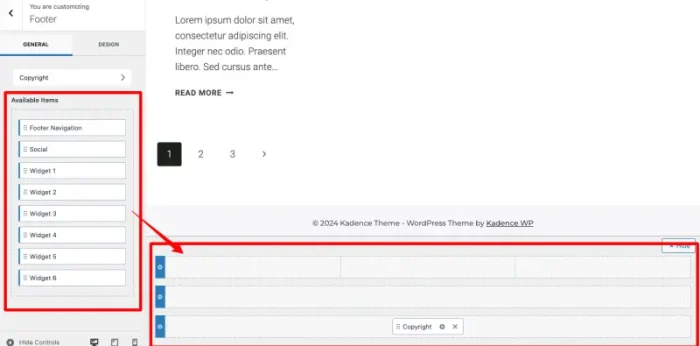
The Kadence Footer Builder isn’t just another design plugin. It’s a complete visual building system that lets you create custom footers using an intuitive drag-and-drop system, completely eliminating the need for technical know-how. This unique feature of the Kadence Theme radically transforms the traditional experience of creating and managing your website’s footer.
Why Traditional Footers Are Limiting Your Potential
Traditional footer customization methods are sabotaging your digital success. While most websites use limited widgets and manual HTML code, you’ll be leveraging a system that offers 15+ native elements with completely visual configuration.
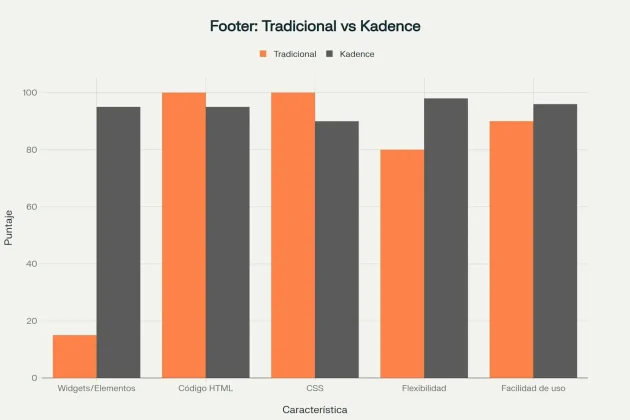
Let me show you why this is crucial:
Advanced Visual Builder System:
- Drag & Drop Editor: Drag elements directly onto the visual interface without writing a single line of code.
- Real-Time Preview: See changes instantly as you edit, eliminating the guesswork.
- Three Configurable Rows: Top row, main row, and bottom row for maximum design flexibility.
- Nine Placement Areas: Three sections per row (left, center, right) for total control.
Native Elements That Make a Difference:
- Copyright: Copyright text with dynamic placeholders that update automatically.
- Navigation: Customizable navigation menus with predefined styles.
- Social: Social media icons with hover effects and professional styles.
- Widget Areas: Six fully customizable widget areas (Footer 1-6).
- HTML: Custom HTML content for specific needs.
- Button: Call-to-action buttons optimized for conversions.
The Revolutionary Impact on SEO and User Experience
The results were stunning: Footers optimized with the Kadence Footer Builder are making a significant impact on SEO and user experience that most webmasters are overlooking.
Key SEO optimization elements for your web footer:
Proven SEO Benefits:
- Strategic Internal Links: Effectively distribute link juice to important pages.
- Improved Navigation: Makes it easier for search engines to crawl your site.
- Site Structure: Clearly organize important content.
- Contextual Keywords: An opportunity to include relevant terms naturally.
Visitors who reach the footer are highly engaged, as they have consumed all the content on the page. This represents a unique opportunity for conversions that most websites are missing out on.
Installation and Initial Setup
Step 1: Prerequisites and Compatibility Check
Before you begin, it’s crucial to verify that your system meets the minimum requirements for optimal performance:
Essential Technical Requirements:
- WordPress: Version 5.9 or higher (6.8+ recommended)
- PHP: Version 7.4 or higher (8.1+ recommended)
- MySQL: Version 5.6 or higher
- RAM: 512MB minimum (1GB+ recommended)
Verified Compatibility with Popular Plugins:
- ✅ WooCommerce: Native integration for e-commerce.
- ✅ RankMath: Compatible with structured data.
- ✅ Yoast SEO: Compatible with structured data.
- ✅ Elementor: Works in tandem for greater flexibility.
- ✅ WPForms: Integrate forms in the footer.
- ✅ MonsterInsights: Analytics and tracking are compatible.
Step 2: Activating the Footer Builder – A Step-by-Step Process
I’m going to show you EXACTLY how to activate the Footer Builder:
Installing the Kadence Theme:
- Dashboard → Appearance → Themes → Add New
- Search: “Kadence”
- Install → Activate
Verifying Activation:
- Dashboard → Appearance → Customize → Footer
- If you see the Footer Builder options, you’re all set!
Installing Kadence Blocks (Highly Recommended):
- Dashboard → Plugins → Add New
- Search: “Kadence Blocks”
- Install → Activate
Accessing the Footer Builder:
- Main Path: Appearance > Customize > Footer
- Shortcut: Hover over the footer on the front end + click the blue pencil icon.
- Block Editor: Available since WordPress 6.8+
Step 3: Basic Configuration to Maximize Results
The key is to establish a solid structure from the very beginning:
Strategic Row Configuration:
- Top Row: For secondary information or announcements.
- Main Row: The primary area with widgets and navigation.
- Bottom Row: For copyright and legal links.
Optimized Column Configuration:
Footer → Main Row → General Settings
├── Layout: 4 equal columns (recommended)
├── Container Width: Standard
├── Vertical Alignment: Top
└── Column Spacing: Medium
Adding Essential Elements:
Main Footer (4 columns):
- Column 1: Widget Area (Footer 1) – Company Information
- Column 2: Widget Area (Footer 2) – Navigation Links
- Column 3: Widget Area (Footer 3) – Categories/Services
- Column 4: Widget Area (Footer 4) – Newsletter/Social
Bottom Footer:
- Left: Copyright
- Center: Legal Navigation (Privacy Policy, Terms)
- Right: Social Media Icons
Essential Elements for a High-Converting Footer
Contact Information That Builds Trust
Contact information in the footer not only builds trust but is also critical for local SEO and can significantly increase your conversions.
Contact elements you must include:
- Physical Address: Boosts local credibility and improves local SEO.
- Phone Number: Facilitates immediate contact and builds trust.
- Email: A formal communication channel.
- Business Hours: Manages response expectations.
Optimized Implementation in the Footer Builder:
Method 1: Custom HTML Widget:
<div class="contact-info">
<h4>Contact Us</h4>
<p>📍 123 Main Street, Anytown, USA</p>
<p>📞 +1 (555) 123-4567</p>
<p>📧 info@yourcompany.com</p>
<p>🕒 Mon-Fri: 9:00 AM - 6:00 PM</p>
</div>
Method 2: Advanced Kadence Blocks:
- Advanced Text Block: For structured information.
- Icon Block: For optimized SVG icons.
- Button Block: For a contact call-to-action.
Strategic Navigation Links
The key is to provide a second chance to direct users to relevant content without cluttering the footer.
Proven Navigation Structure:
Main Navigation:
- Home
- About Us
- Services/Products
- Blog
- Contact
Product/Service Navigation:
- Main Categories
- Featured Products
- Special Offers
- Support/FAQ
Implementation with Kadence:
- Create Footer Menus:
- Dashboard → Appearance → Menus
- Create a new menu: “Footer Navigation”
- Add main pages
- Assign location: Footer Menu
- Configure in Footer Builder:
Footer → Widget Area → Navigation Menu Widget
├── Select Menu: Footer Navigation
├── Display Titles: Yes
└── Style: Vertical list
Social Media and Powerful Calls to Action
Social media in the footer not only extends your digital presence but also significantly improves engagement and can increase conversions by up to 15%.
Optimized Social Icon Setup:
Step 1: Configure Global Links:
Dashboard → Appearance → Customize → General → Social Links
├── Facebook: https://facebook.com/yourcompany
├── Twitter: https://twitter.com/yourcompany
├── Instagram: https://instagram.com/yourcompany
├── LinkedIn: https://linkedin.com/company/yourcompany
└── YouTube: https://youtube.com/yourcompany
Step 2: Add to Footer:
Footer Builder → Drag "Social" → Footer Area
Footer → Social → Design Settings:
├── Icon Style: Filled
├── Icon Size: 20px
├── Color Scheme: Brand colors
└── Hover Effect: Subtle scale
Calls-to-Action That Convert:
- Newsletter Signup: Capture leads at the moment of peak engagement.
- Demo Request: For B2B services.
- Download: Offer free resources.
- Consultation: For professional services.
Advanced Footer SEO Optimization
Internal Linking Structure That Dominates the Rankings
Footers optimized with a strategic internal linking strategy can increase organic traffic by up to 25%.
Proven Internal Link Building Principles:
- Link Juice Distribution: Link to important pages.
- Crawlability: Make it easy for bots to navigate.
- User Flow: Guide users toward conversions.
- Keyword Optimization: Use strategic anchor text.
Recommended Structure:
Footer Navigation Structure:
├── Main Pages (20% of total)
├── Product/Service Categories (40%)
├── High-Value Content (blog, resources) (25%)
└── Legal & Contact Pages (15%)
Examples of Optimized Anchor Text:
- ❌ “Click here”
- ✅ “SEO Consulting New York”
- ❌ “More info”
- ✅ “WordPress Web Development”
Optimizing for Local Keywords
The key is to optimize the footer specifically for local searches, which is especially crucial for businesses with a physical presence.
Essential Local SEO Elements:
- NAP (Name, Address, Phone): Keep information consistent.
- Geo-Targeted Keywords: “Services in [City]”
- Links to Locations: For multiple branches.
- Business Hours: Structured information.
Practical Implementation:
<div class="local-seo-footer">
<h4>Your Company New York</h4>
<address>
123 Broadway<br>
New York, NY 10001<br>
USA
</address>
<p>📞 +1 (212) 555-0123</p>
<p>🕒 Mon-Fri: 9:00 AM - 6:00 PM</p>
</div>
Schema Markup and Structured Data
Structured data in the footer significantly improves search engine comprehension and can increase CTR by up to 30%.
Implementing Organization Schema:
{
"@context": "https://schema.org",
"@type": "Organization",
"name": "Your Company",
"url": "https://yourcompany.com",
"logo": "https://yourcompany.com/logo.jpg",
"contactPoint": {
"@type": "ContactPoint",
"telephone": "+1-555-123-4567",
"contactType": "customer service",
"availableLanguage": "English"
},
"sameAs": [
"https://facebook.com/yourcompany",
"https://twitter.com/yourcompany",
"https://linkedin.com/company/yourcompany"
]
}
Responsive Design and Performance Optimization
Responsive Settings That Work on All Devices
A responsive footer design is absolutely crucial to maintain functionality on all devices. Poorly optimized mobile footers can reduce conversions by up to 40%.
Optimized Kadence Breakpoints:
- Desktop: > 1024px
- Tablet: 768px – 1024px
- Mobile: < 768px
Custom CSS Configuration:
/* Tablet optimization */
@media (max-width: 1024px) {
.site-footer .footer-row {
grid-template-columns: repeat(2, 1fr);
gap: 20px;
}
}

/* Mobile optimization */
@media (max-width: 768px) {
.site-footer .footer-row {
grid-template-columns: 1fr;
gap: 30px;
}

.footer-widget a {
display: block;
padding: 8px 0;
font-size: 16px;
}
}
Load Speed Optimization
Here’s the hard truth: Poorly optimized footers can significantly slow down your site and negatively affect your Core Web Vitals.
Proven Optimization Techniques:
- Lazy Loading: Defer loading of non-critical elements.
- Image Optimization: Use SVG icons instead of image files.
- CSS Minification: Use optimized code.
- Deferred JavaScript: Use non-blocking scripts.
Performance Settings in Kadence:
Dashboard → Appearance → Customize → General → Performance
├── Load Google Fonts Locally: ✅ Enabled
├── Preload Local Fonts: ✅ Enabled
├── Defer Non-Critical JavaScript: ✅ Enabled
└── Optimize CSS Output: ✅ Enabled
Common Mistakes to Avoid
Mistake #1: Information Overload
But here’s what’s really important: Information overload is one of the most devastating mistakes that can compromise your footer’s effectiveness.
Symptoms of Overload:
- More than 50 total links.
- Dense text that’s hard to scan.
- Lack of clear visual hierarchy.
- Elements competing for attention.
The 7±2 Rule: Users can efficiently process between 5-9 items per section. Organize your footer with this limit in mind.
Mistake #2: Broken Links and Navigation Issues
Broken links in the footer can significantly harm the user experience and your SEO.
Essential Monitoring System:
- Google Search Console: For crawl errors.
- Screaming Frog: For a complete link audit.
- Broken Link Checker Plugin: For automatic checks.
Monthly Maintenance Routine:
- Run a broken link scan.
- Check for 301/302 redirects.
- Update links to deleted pages.
- Review external links.
- Test navigation on mobile.
Mistake #3: Responsive and Mobile Issues
Responsive issues can make your footer completely unusable on mobile devices.
Target Mobile Metrics:
- Touch Target Size: 44px minimum.
- Text Size: 16px minimum.
- Line Height: 1.4-1.6 for readability.
- Scroll Performance: Ensure smooth scrolling.
Advanced Integration with the Kadence Ecosystem
Powerful Combination with Kadence Blocks
The synergy between the Footer Builder and Kadence Blocks exponentially multiplies your design possibilities.
Advanced Blocks for Your Footer:
- Advanced Text Block: Granular typography and custom hover effects.
- Row Layout Block: Complex layouts within widgets.
- Icon Block: Optimized SVG icons with animations.
- Advanced Button Block: CTA optimization and A/B testing ready.
Practical Implementation:
Footer Widget Area → Add Block → Kadence/Row Layout
├── Column 1: Kadence/Advanced Text (Company info)
├── Column 2: Kadence/Advanced Button (CTA)
└── Column 3: Kadence/Icon (Social media)
Integration with Third-Party Plugins
Compatible plugins extend your footer’s functionality exponentially.
E-commerce:
- WooCommerce: Full native integration.
- Easy Digital Downloads: Support for digital products.
- GiveWP: Donation forms.
Forms & Marketing:
- Mailchimp: Optimized newsletter signup.
- ConvertKit: Advanced email marketing.
- WPForms: Contact forms.
Advanced Strategies for 2025
Conversion Rate Optimization (CRO)
Optimizing your footer for conversions can significantly boost your business results.
Essential Conversion Elements:
- Strategic Calls-to-Action: Placed at the moment of peak engagement.
- Lead Capture Forms: For newsletters and free resources.
- Testimonials and Reviews: Social proof elements.
- Guarantees and Certifications: Credibility boosters.
Analytics and Performance Metrics
Key Metrics to Measure Success:
- Newsletter Signup Rate: 2-5% average from the footer.
- Social Follow Rate: 1-3% typical click-through.
- Contact Form Submissions: 0.5-2% from the footer.
- Cross-Page Navigation: 10-20% through footer links.
Recommended Analytics Tools:
- Google Analytics 4: Event and conversion tracking.
- Hotjar: Heatmaps and session recordings.
- Google Search Console: SEO performance.
- PageSpeed Insights: Performance metrics.
Your Action Plan
The Kadence Footer Builder represents a unique opportunity to maximize the potential of the most underrated area of your website. Its combination of ease of use, design flexibility, and SEO optimization makes it a comprehensive solution for creating footers that not only look professional but also drive specific business goals.
Your next step: Implement these strategies, starting with the basic setup and moving on to more sophisticated optimizations. The native integration with the entire Kadence ecosystem ensures that your footer is part of a coherent digital strategy.

Elias Ramirez
Behind KadeRank is me, its founder, with 11 years dedicated to the world of Web positioning (SEO), site optimization and WordPres. I help companies and entrepreneurs to build and improve their Internet presence with fast, effective and well-positioned websites, specializing in the Kadence WP environment.
