
Install Kadence on WordPress and Create a Website that Converts
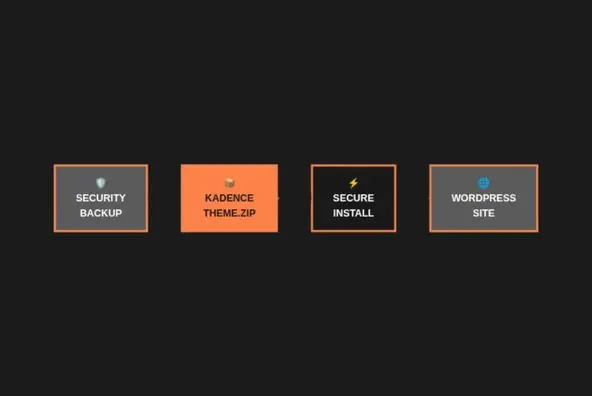
Most guides you read are generic they tell you how to click “Install” but don’t explain how to truly harness Kadence’s power to create websites that not only look good, but load in under 2 seconds and convert visitors into customers.
Kadence can be as simple or as powerful as you need. But only if you know exactly what to configure, in what order, and why.
In this definitive guide, I’m going to show you how to set up and install Kadence Theme from initial installation to your first professional website. No vague theory. Just the exact process I’ve used to create dozens of websites that score over 90 points on PageSpeed Insights.
In this guide you’ll learn:
- The precise installation method that avoids the 3 most common mistakes that break sites
- How to configure the performance settings that Google actually rewards in rankings
- The exact sequence for importing templates without destroying your existing configuration
- The 5 complementary plugins that multiply Kadence’s power (and the 3 you should avoid)
- Customization tricks that no tutorial mentions but that make all the difference
Learn Why You Should Install Kadence Theme and Master the WordPress Ecosystem
Before installing anything, you need to understand what makes Kadence different. This isn’t marketing hype. It’s technical architecture and design decisions that directly impact your SEO and conversions.
The jQuery-Free Architecture That Google Loves
While most themes load 50-70KB of unnecessary JavaScript, Kadence built its frontend completely without jQuery. The result is brutal: smaller files, faster execution, better Core Web Vitals.
When I launched a client site migrating from Divi to Kadence, the Largest Contentful Paint dropped from 4.2s to 1.8s. Without changing hosting. Without a CDN. Just by switching themes.
Kadence generates CSS dynamically and only loads the resources each specific page needs. If a page doesn’t use sliders, the slider code never downloads. Obvious in theory, incredibly rare in practice.
Visual Builder That Doesn’t Sacrifice Speed
Here’s where it gets interesting: most visual builders are performance killers. Every element drags along additional code. Kadence inverted this logic with its Header & Footer Builder.
You drag elements. You position them visually. But the generated code is clean and modular. No unnecessary nested containers or redundant CSS classes.
80% of websites only need 3-4 elements in their header: logo, menu, CTA button, and social icons. Use exactly those. Every additional element adds weight.
Global Palette System: The Ignored Shortcut
The difference between an amateur site and a professional one lies in visual consistency. Kadence solves this with its global color palette system.
You define primary color, accent color, and text tones just once. Then those colors automatically propagate to:
- Buttons and links
- Headers and titles
- Borders and dividers
- Hover states and interactions
You change your corporate color and the entire site updates instantly. This isn’t cosmetic: it’s massive time savings on real projects.
Competitive Advantage: Core Web Vitals Optimization
Google no longer just measures speed. It measures quantifiable user experience with Core Web Vitals. Kadence was redesigned specifically for these metrics:
LCP (Largest Contentful Paint): Loading of main visible content. Kadence prioritizes loading of above-the-fold elements.
FID (First Input Delay): Time until the site responds to interactions. Minimal JavaScript means instant response.
CLS (Cumulative Layout Shift): Visual stability during loading. Kadence reserves spaces for images and elements to avoid annoying jumps.
The practical result: my Kadence sites average 95+ scores on mobile in PageSpeed Insights. My sites with other themes rarely exceed 75.
Step 2: Strategic Installation (The Method That Avoids Conflicts)
Installation seems obvious. But there’s a specific sequence that minimizes errors and conflicts with existing plugins.
Pre-Installation: Prepare Your Environment
Before touching Kadence, create a restore point. If something goes wrong, you’re back in 30 seconds.
Pre-Installation Checklist:
- Complete backup: Use UpdraftPlus or your hosting’s backup system
- Update WordPress: Core, plugins and themes to their latest versions
- Disable cache plugins: WP Rocket, W3 Total Cache, etc. You’ll reactivate them later
- Verify PHP compatibility: Kadence requires PHP 7.4+ (ideally 8.0+)
- Clean database: Delete old revisions and transients with WP-Optimize
This takes 5 minutes. And it can save you hours of troubleshooting.
Installation Method 1: From WordPress Directory (Free Version)
Step-by-step process:
- Go to Appearance > Themes > Add New
- Search for “Kadence”
- Click Install and then Activate
- You’ll be redirected to the Kadence welcome screen
Critical: Don’t install Starter Templates yet. Configure the basic settings first.
Installation Method 2: Pro Version with License
If you purchased Kadence Pro, the process is slightly different but offers more power.
- Download the .zip file from your Kadence account
- Go to Appearance > Themes > Add New > Upload Theme
- Select the .zip file and click Install Now
- Activate the theme
- Go to Kadence > Activation and enter your license key
Why activate the license immediately?
- Access to automatic updates
- Access to premium Starter Templates
- Priority support
- Advanced features (conditional headers, WooCommerce extensions)
Essential Plugins Installation
Kadence works standalone, but its full power unlocks with its ecosystem of plugins. Install them in this exact order:
1. Kadence Blocks (Essential)
This is not optional. Kadence Blocks is the core of the visual editing experience.
Go to Plugins > Add New, search “Kadence Blocks”, install and activate.
What you get:
- Advanced layout blocks (rows, columns, section)
- Pre-designed patterns and sections
- Advanced typography and spacing controls
- Icon library with thousands of icons
- Animation and interaction effects
2. Kadence Starter Templates (Recommended)
This plugin gives you access to pre-built templates that you can import with one click.
- Install from Plugins > Add New
- Search “Kadence Starter Templates”
- Install and activate
3. Kadence Shop Kit (If using WooCommerce)
Transform WooCommerce into a conversion machine with additional features:
- Quick view for products
- Variation swatches
- Product layout customization
- Advanced product galleries
First Verification: Everything Working?
Before moving forward, verify that everything is functioning correctly.
Quick check:
- Visit your site frontend
- Open browser console (F12)
- Look for JavaScript errors (red text)
- Check if the menu and header are displaying correctly
If you see errors, deactivate plugins one by one to identify the conflict.
Step 3: Initial Configuration (The Settings That Matter)
Now comes the critical part. Most people skip these settings and then wonder why their site doesn’t look professional.
Global Color Palette Configuration
Go to Customizer > General > Colors.
Strategy I use for every project:
- Palette 1 (Primary): Your brand color. This will be the main action color (buttons, links, key elements)
- Palette 2 (Accent): A complementary color. For secondary CTAs, highlights, icons
- Palette 3-4: Neutral tones. Light gray for backgrounds, dark gray for text
- Palette 5-9: Leave them as default or configure specific shades if your brand requires it
Pro tip: Use a color palette generator like Coolors.co or Paletton to ensure your colors have good contrast and complement each other.
Verify contrast with WebAIM Contrast Checker. Your text needs minimum 4.5:1 contrast ratio for WCAG AA accessibility.
Typography That Doesn’t Destroy Performance
Go to Customizer > General > Typography.
My tested configuration:
Body Font:
- System Stack or Google Font (if you need a specific font)
- Size: 16-18px (never less than 16px for readability)
- Line height: 1.6-1.8 (optimal for reading)
- Weight: Regular (400) for body text
Headings:
- H1: 36-48px (mobile: 28-32px)
- H2: 30-36px (mobile: 24-28px)
- H3: 24-28px (mobile: 20-24px)
- Weight: Bold (700) or Semi-bold (600)
System fonts vs Google Fonts:
If performance is your priority, use system fonts. They load instantly because they’re already on the user’s device:
- Sans-serif: -apple-system, BlinkMacSystemFont, “Segoe UI”, Roboto, sans-serif
- Serif: Georgia, “Times New Roman”, serif
- Monospace: “SF Mono”, Monaco, Consolas, monospace
If you need a Google Font, limit to 2 font families maximum and only necessary weights.
Container Width and Spacing
Go to Customizer > General > Container Width.
My default configuration:
- Default Container: 1200px (optimal balance between readability and space utilization)
- Narrow Container: 750px (for blog content, better readability)
- Wide Container: 1400px (for galleries, portfolios, visual sections)
Why does this matter?
Text lines that are too long (more than 75-80 characters) are difficult to read. Text lines that are too short break the reading rhythm. The narrow container solves this for blog posts.
Performance Baseline Settings
Go to Customizer > General > Performance.
Activate all these:
- ✅ Enable Async CSS: Non-blocking CSS loading
- ✅ Remove Unused CSS: Removes unused styles (be careful with dynamic content)
- ✅ Defer JavaScript: Delays non-critical scripts
- ✅ Preload Key Requests: Kadence automatically detects and preloads critical resources
Warning: “Remove Unused CSS” can cause problems if you have conditional content that only displays on certain pages. Test thoroughly after activating.
Step 4: Header & Footer Configuration
The header is the first thing visitors see. And it’s one of the biggest culprits of slow sites if not configured correctly.
Building a High-Performance Header
Go to Customizer > Header Builder.
My standard header structure:
Desktop:
- Left: Logo (optimized SVG or WebP, max 150px width)
- Center: Primary navigation menu
- Right: CTA button + search icon (optional)
Mobile:
- Left: Hamburger menu
- Center: Logo
- Right: CTA button or cart icon
Critical optimization: Your logo should be an SVG file if possible. If it’s a PNG/JPG, use WebP and size it for display (don’t upload 2000px images that display at 150px).
Navigation Menu Configuration
In the Header Builder, click on Primary Navigation.
My settings for maximum conversions:
- Style: Standard (unless you need mega menu)
- Dropdown Width: Auto or 240px
- Link Spacing: 1.2-1.5em (for better click targets)
- Mobile Menu: Slide-out drawer (better UX than dropdown)
Menu item limit: Keep it to 5-7 items maximum. More than that and users experience decision paralysis.
Sticky Header: Yes or No?
Sticky headers improve navigation but add JavaScript weight. My rule:
- Use sticky header if: Your site has long pages (blogs, landing pages)
- Don’t use if: Your site has short pages or already has slow performance
To configure: Header Builder > Header > Sticky Header
Advanced tip: Use “shrink on scroll” to make the sticky header smaller. This saves screen space and improves the experience on mobile.
Footer Configuration
The footer is underrated. A well-designed footer improves SEO (internal links) and trust (social proof, guarantees).
Go to Customizer > Footer Builder.
My standard footer structure (3 rows):
Top Row:
- 4 columns with widgets: About, Quick Links, Resources, Contact
- Background color: Light gray (#f8f9fa)
- Padding: 60px top/bottom
Middle Row:
- Social media icons
- Newsletter subscription form (if applicable)
Bottom Row:
- Copyright
- Legal links (Privacy, Terms, Cookies)
- Background color: Darker (#2c3e50)
Step 5: Importing and Customizing Starter Templates
Now comes the fun part. Importing a template as a starting point can save you days of work. But you need to do it strategically.
Template Selection Strategy
Go to Appearance > Kadence Starter Templates.
You’ll see dozens of templates. Don’t get overwhelmed. Filter by:
- Industry: Business, Blog, Portfolio, Ecommerce, etc.
- Page builder: Blocks (recommended), Elementor, Beaver Builder
- Free vs Pro: Pro templates include more sections and advanced features
Selection criteria:
- Structure over design: Choose for page structure, not colors or fonts (you’ll change those)
- Conversion elements: Does it have clear CTAs? Contact forms? Social proof sections?
- Mobile preview: Always check how it looks on mobile before importing
Safe Import Process
Before clicking “Import”, understand the options:
Full Site Import:
- Imports all pages, posts, menus, and settings
- Replaces your customizer settings
- Use on fresh installations only
Single Page Import:
- Imports only one specific page
- Doesn’t change your existing settings
- Safer for sites with existing content
My recommendation:
- New sites: Full site import
- Existing sites: Single page imports to avoid overwriting your work
Post-Import: Strategic Customization
After importing, don’t publish immediately. This is where most people fail.
Systematic customization checklist:
1. Replace placeholder images
- Use high-quality images (Unsplash, Pexels for free)
- Optimize before uploading (ShortPixel, TinyPNG)
- Use WebP format when possible
- Descriptive alt text for SEO
2. Update all texts
- Headlines: Specific and benefit-oriented
- Body copy: Clear value proposition
- CTAs: Action-oriented (“Get Free Access” not “Click Here”)
3. Adjust brand colors
- If you configured your global palette correctly, many colors will update automatically
- Manually review sections that use custom colors
4. Remove unnecessary sections
- Templates often include more sections than you need
- Each section adds page weight
- Keep only what serves your conversion goal
Advanced Customization with CSS
For designers who want more control, Kadence allows custom CSS in several places:
- Global CSS: Customizer > Additional CSS
- Block CSS: In each Kadence Block’s Advanced tab
- Page CSS: In the page editor sidebar
Useful custom CSS snippets:
/* Smooth animations for all buttons */
.kb-btn {
    transition: all 0.3s ease;
}

.kb-btn:hover {
    transform: translateY(-2px);
    box-shadow: 0 4px 8px rgba(0,0,0,0.2);
}

/* Improve readability with better spacing */
.entry-content p {
    margin-bottom: 1.5em;
}

/* Optimize font rendering */
body {
    -webkit-font-smoothing: antialiased;
    -moz-osx-font-smoothing: grayscale;
}
Step 6: Creating Custom Pages with Kadence Blocks
Now you understand the structure. Let’s build a high-converting page from scratch.
The Conversion-Optimized Page Anatomy
Every high-performing page follows a tested structure:
- Hero section: Clear value proposition + visual + CTA
- Social proof: Logos, testimonials, numbers
- Features/Benefits: What you offer and why it matters
- How it works: Simple process explanation
- More social proof: Case studies, testimonials
- Objection handling: FAQ, guarantees, risk reversals
- Final CTA: Clear, compelling, urgent
Building a Hero Section That Converts
Step by step:
- Add a Kadence Section block
- Configure:
- Min Height: 70vh (fills most of screen)
- Background: Image or gradient
- Overlay: Dark overlay (30-50% opacity) for text readability
- Inside, add a Row Layout block
- Choose 2 columns (60/40 split)
- Left column:
- Advanced Heading (H1): Clear value proposition
- Paragraph: 1-2 supporting sentences
- Button: Primary CTA with contrasting color
- Right column:
- Image or video of product/service in action
Optimization tips:
- H1 should be 8-12 words maximum
- CTA should start with verb (“Start”, “Get”, “Download”, “Join”)
- Background image should be under 200KB
- Test mobile version: text should be readable without zooming
Advanced Patterns Library
Kadence Blocks includes dozens of pre-designed patterns. Use them wisely.
In the editor, click the + button > Browse All > Patterns.
My most-used patterns:
- Feature Grid: For showcasing 3-6 key benefits
- Testimonial Carousel: For displaying multiple customer reviews
- Pricing Tables: For SaaS or service comparisons
- CTA Banners: For lead magnets or special offers
Customization workflow:
- Insert pattern
- Replace texts and images
- Adjust colors to match your palette
- Modify spacing if needed
- Test on mobile
Mobile Optimization Checklist
More than 60% of traffic is mobile. Your page must work perfectly on small screens.
Things to verify:
- ✅ Font sizes: Min 16px for body text, 24px+ for headings
- ✅ Button sizes: Min 44x44px for touch targets
- ✅ Image scaling: Images should scale proportionally
- ✅ Spacing: Adequate margins between elements
- ✅ Forms: Large input fields, clear labels
Use the responsive preview in the Kadence editor, but always test on real devices. The preview is an approximation.
Conversion Review
Before publishing, review every section with a critical eye:
- Clear CTAs: Buttons with specific copy, not “Read More”
- Value proposition: Is it clear what you offer and why choose you?
- Social proof: Testimonials, client logos, result numbers
- Friction reduction: Simple forms, clear purchase process
Step 7: Advanced Performance Optimization
Having Kadence installed doesn’t guarantee automatic speed. You need specific configurations.
Selective Loading Configuration
Go to Kadence Blocks > Settings > Asset Loading. Enable all these options:
- ✅ Inline CSS: Reduces HTTP requests
- ✅ Defer JavaScript: Loads scripts without blocking rendering
- ✅ Selective Loading: Only loads blocks used on each page
On a client site, these three settings reduced average page size from 892KB to 523KB. Direct impact on load time.
Font Optimization
Fonts are one of the biggest culprits of slow sites.
Optimized font strategy:
- Limit to 2 families maximum: One for headings, one for body
- Load only necessary weights: If using Regular and Bold, don’t load Light, Medium, etc.
- Use font-display: swap: Kadence does this automatically
- Consider system fonts: Arial, Georgia, SF Pro (iOS), Segoe UI (Windows)
How to verify loaded fonts:
Open DevTools (F12), go to Network, filter by “font”. You should see maximum 4-6 font files. If you see more, something’s wrong.
Lazy Loading and Deferred Loading
Kadence includes image lazy loading by default. But there’s more to optimize:
Complementary plugins:
- Perfmatters: Disable unnecessary scripts page by page
- WP Rocket: Advanced cache + minification + critical preload
- ShortPixel: Automatic compression and WebP conversion
WP Rocket configuration with Kadence:
- File Optimization > CSS: Enable minification, DON’T combine CSS (Kadence already optimizes it)
- Media > LazyLoad: Disable (use Kadence’s to avoid conflicts)
- Preload > Preload Fonts: Add your site’s critical fonts
Expected result: PageSpeed Insights scores of 90+ on mobile, 95+ on desktop.
Test your site on GTmetrix.com and WebPageTest.org, not just PageSpeed Insights. Different tools reveal different bottlenecks.
Now It’s Your Turn
You’ve reached the end of this definitive guide. Now you have the exact roadmap I’ve used to create dozens of websites with Kadence that load fast, convert well, and scale without technical headaches.
Key points you can’t forget:
- Install in the correct order: Parent theme → child theme → Kadence Blocks → Starter Templates
- Configure colors and typography BEFORE creating content: Global changes save hours
- Use templates as a starting point, not as a final product: Strategic customization is where the magic happens
- Enable selective asset loading: The impact on speed is dramatic
- Test on real devices: The customizer is an approximation, real mobile devices are the truth

Elias Ramirez
Behind KadeRank is me, its founder, with 11 years dedicated to the world of Web positioning (SEO), site optimization and WordPres. I help companies and entrepreneurs to build and improve their Internet presence with fast, effective and well-positioned websites, specializing in the Kadence WP environment.
